


This is a class library that provides configuration-centric keyboard shortcuts for your Blazor apps.
(This library is a successor of the "Blazor HotKeys" library.)
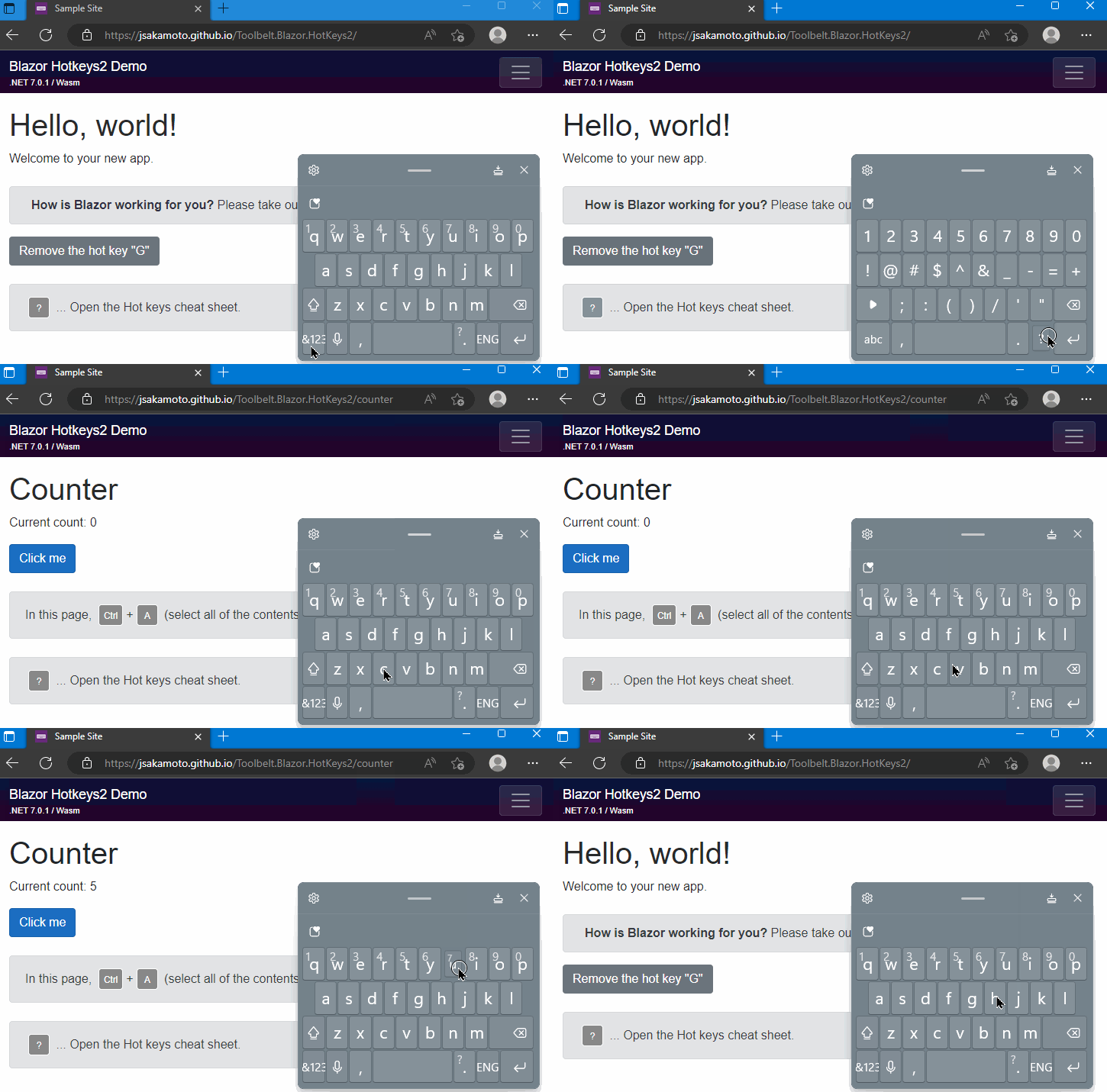
You can declare associations of keyboard shortcut and callback action, like this code:
// The method "OnSelectAll" will be invoked
//  when the user typed Ctrl+A key combination.
_hotKeysContext = this.HotKeys.CreateContext()
  .Add(ModCode.Ctrl, Code.A, OnSelectAll)
  .Add(...)
...;This library suppots ASP.NET Core Blazor version 8.0, 9.0, 10.0 or later.
Step.1 Install the library via NuGet package, like this.
> dotnet add package Toolbelt.Blazor.HotKeys2Step.2 Register "HotKeys" service into the DI container.
// Program.cs
using Toolbelt.Blazor.Extensions.DependencyInjection; // 👈 1. Add this line
...
builder.Services.AddHotKeys2(); // 👈 2. Add this line
...Step.1 Implement IAsyncDisposable interface to the component.
@implements IAsyncDisposable @* 👈 Add this at the top of the component.  *@
...

@code {
  ...
  public async ValueTask DisposeAsync() // 👈 Add "DisposeAsync" method.
  {
  }
}
Step.2 Open the Toolbelt.Blazor.HotKeys2 namespace, and inject the HotKeys service into the component.
@implements IAsyncDisposable
@using Toolbelt.Blazor.HotKeys2 @* 👈 1. Add this *@
@inject HotKeys HotKeys @* 2. 👈 Add this *@
...
Step.3 Invoke the CreateContext() method of the HotKeys service instance at the timing for the first time the component renders, such as the OnAfterRender() method, to create and activate hotkey entries. Please make sure to keep the HotKeysContext object, which is returned from the CreateContext() method, in the component field.
Then, you can add the combination with key and action to the HotKeysContext object using the Add() method.
@code {

  private HotKeysContext? _hotKeysContext;

  protected override void OnAfterRender(bool firstRender)
  {
    if (firstRender) {
      _hotKeysContext = this.HotKeys.CreateContext()
        .Add(ModCode.Ctrl|ModCode.Shift, Code.A, FooBar, new() { Description = "do foo bar." })
        .Add(...)
        ...;
    }
  }

  private void FooBar() // 👈 This will be invoked when Ctrl+Shift+A typed.
  {
    ...
  }
}
Note
You can also specify the async method to the callback action argument.
Note
The method of the callback action can take an argument which is HotKeyEntryByCode or HotKeyEntryByKey object.
Step.4 Dispose the HotKeysContext object when the component is disposing, in the DisposeAsync() method of the component.
@code {
  ...
  public async ValueTask DisposeAsync()
  {
    // 👇 Add this
    if (_hotKeysContext != null) {
      await _hotKeysContext.DisposeAsync();
    }
  }
}
The complete source code (.razor) of this component is bellow.
@page "/"
@implements IAsyncDisposable
@using Toolbelt.Blazor.HotKeys2
@inject HotKeys HotKeys

@code {

  private HotKeysContext? _hotKeysContext;

  protected override void OnAfterRender(bool firstRender)
  {
    if (firstRender) {
      _hotKeysContext = this.HotKeys.CreateContext()
        .Add(ModCode.Ctrl|ModCode.Shift, Code.A, FooBar, new() { Description = "do foo bar." });
    }
  }

  private void FooBar()
  {
    // Do something here.
  }

  public async ValueTask DisposeAsync()
  {
    if (_hotKeysContext != null) {
      await _hotKeysContext.DisposeAsync();
    }
  }
}You can specify enabling/disabling hotkeys depending on which kind of element has focus at the hotkeys registration via a combination of the Exclude flags in the property of the option object argument of the HotKeysContext.Add() method.
The default value of the option object's Exclude flag property is the following combination.
Exclude.InputText | Exclude.InputNonText | Exclude.TextAreaThis means hotkeys are disabled when the focus is in <input> (with any type) or <textarea> elements by default.
If you want to enable hotkeys even when an <input type="text"/> has focus, you can implement it as below.
... this.HotKeys.CreateContext()
  .Add(Code.A, OnKeyDownA, new() {
    // 👇 Specify the "Exclude" property of the options.
    Exclude = Exclude.InputNonText | Exclude.TextArea })
  ...
You can also specify the elements that are disabled hotkeys by CSS query selector string via the ExcludeSelector property of the options object.
... this.HotKeys.CreateContext()
  .Add(Code.A, OnKeyDownA, new() {
    // 👇 Specify the CSS query selector to the "ExcludeSelector" property of the options.
    ExcludeSelector = ".disabled-hotkeys-area" })
  ...
And you can specify the Exclude.ContentEditable to register the unavailable hotkey when any "contenteditable" applied elements have focus.
You can also specify the PreventDefault and Disabled properties of the option object argument of the HotKeysContext.Add() method.
// 👇 Specify the "PreventDefault" and "Disabled" properties of the options.
_hotKeysContext = this.HotKeys.CreateContext()
  .Add(ModCode.Ctrl, Code.A, OnCtrlA, new() { PreventDefault = false })
  .Add(ModCode.Ctrl, Code.S, OnCtrlS, new() { Disabled = true });
According to the above code, the OnCtrlA method will be invoked when the user types the "Ctrl + A" key combination, but the default browser action for that key combination will not be prevented.
On the other hand, the OnCtrlS method will not be invoked when the user types the "Ctrl + S" key combination because the hotkey is initially disabled.
These properties can be changed dynamically by retrieving the HotKeyEntry object after registration and updating its PreventDefault and Disabled properties.
// Retrieve the HotKeyEntry objects you need after the registration.
var hotKeyCtrlA = _hotKeysContext.GetHotKey(ModCode.Ctrl, Code.A);
var hotKeyCtrlS = _hotKeysContext.GetHotKey(ModCode.Ctrl, Code.S);

// Update the PreventDefault property of the Ctrl+A hotkey to true.
hotKeyCtrlA.PreventDefault = true;

// Enable the hotkey by setting Disabled property of the Ctrl+S hotkey to false.
hotKeyCtrlS.Disabled = false;You can remove hotkkey entries by calling the Remove() method of the HotKeysContext object, like this.
_hotKeysContext.Remove(ModCode.Ctrl, Code.A);Please remember that the Remove method will remove a hotkey entry identified by the key, code, and modifiers parameters even if other parameters are unmatched by the registered hotkey entry as long as it can identify a single hotkey entry.
...
  _hotKeysContext = this.HotKeys.CreateContext()
    .Add(Code.A, OnKeyDownA, exclude: Exclude.InputNonText | Exclude.TextArea);
...
// The following code will remove the hotkey entry registered by the above code
// even though the "exclude" option is different.
_hotKeysContext.Remove(Code.A);
If the parameters for the Remove method can not determine a single hotkey entry, the ArgumentException exception will be thrown.
...
_hotKeysContext = this.HotKeys.CreateContext()
  .Add(Code.A, OnKeyDownAForTextArea, exclude: Exclude.InputNonText | Exclude.InputText)
  .Add(Code.A, OnKeyDownAForInputText, exclude: Exclude.InputNonText | Exclude.TextArea);
...
// The following code will throw an ArgumentException exception
// because the "Remove" method can not determine a single hotkey entry.
_hotKeysContext.Remove(Code.A);
...
// The following code will successfully remove the hotkey entry in the second one.
_hotKeysContext.Remove(Code.A, exclude: Exclude.InputNonText | Exclude.TextArea);
If the key, code, and modifires parameters cannot find any hotkey entry, the Remove method will return without exception.
The HotKeysContext also provides another Remove method overload version that accepts a filter function as an argument to determine which hotkey entries to remove. This method will remove all hotkey entries in which the filter function returns.
// The following code will remove all hotkey entries registered by the "Code. A",
// regardless of what modifiers, exclude options, etc.
_hotKeysContext.Remove(entries =>
{
  return entries.Where(e => e is HotKeyEntryByCode codeEntry && codeEntry.Code == Code.A);
});There are two ways to register hotkeys in the HotKeysContext.
One of them is registration by the Code class, and another one is registration by the Key class.
Hotkeys registration by the Code class is based on the physical location of keys.
For example, if you register a hotkey by Add(ModCodes.Shift, Code.A, callback), the callback will be invoked when a user presses the "Shift" and the "A" keys. In this case, that hotkey doesn't depend on the Caps Lock key condition. Regardless of whether the Caps Lock key is on or off, the callback will be invoked whenever a user press the "Shift + A". This means the hotkey registered by the Code class works based on the location of the pressed key. It is no matter what character will be inputted, both "a" lower case and "A" upper case, as long as the key printed "A" on its key top is pressed.
I recommend using the Code class for hotkeys registration in the following cases.
- The hotkeys are based on alphabetical or numerical keytops.
- The hotkeys are based on the difference of left or right of the Shift, Control, Alt, and Meta keys.
- The hotkeys are based on a combination with the Shift key.
Hotkeys registration by the Key class is based on the character inputted by key pressing.
For example, if you register a hotkey by Add(Key.Question, callback), the callback will be invoked when a user presses a key combination that will input the ? character. In this case, that hotkey doesn't depend on the physical layout of the keys. Generally, the ? character will be inputted by pressing the "Shift+/" on a US layout keyboard. But, on a Czech Republic layout keyboard, the ? character will be inputted by pressing the "Shift+,". Therefore, you should not register the hotkey for the ? by the Code class based on physical key locations, like Add(ModCodes.Shift, Code.Slash, ...).
In addition, the combination with the Shift key can not use on the registration hotkeys by the Key class. This is a limitation for the hotkeys to be independent on physical keyboard layout.
I recommend using the Key class for hotkeys registration in the following cases.
- The hotkeys are based on symbols, such as
?,@,#, etc. - The hotkeys don't mind whether the Shift key is pressed or not.
This library includes and uses a JavaScript file to handle keyboard events. When you update this library to a newer version, the browser may use the cached previous version of the JavaScript file, leading to unexpected behavior. To prevent this issue, the library appends a version query string to the JavaScript file URL when loading it.
A version query string will always be appended to the HotKeys2 JavaScript file URL regardless of the Blazor hosting model you are using.
By default, a version query string will be appended to the JavaScript file URL that HotKeys2 loads. If you want to disable appending a version query string to the JavaScript file URL that HotKeys2 loads, you can do so by setting the TOOLBELT_BLAZOR_HOTKEYS_JSCACHEBUSTING environment variable to 0.
// Program.cs
...
using Toolbelt.Blazor.Extensions.DependencyInjection;

// 👇 Add this line to disable appending a version query string for the HotKeys2 JavaScript file.
Environment.SetEnvironmentVariable("TOOLBELT_BLAZOR_HOTKEYS_JSCACHEBUSTING", "0");

var builder = WebApplication.CreateBuilder(args);
...
However, when you publish a .NET 10 Blazor WebAssembly app, a version query string will always be appended to the JavaScript file URL that HotKeys2 loads regardless of the TOOLBELT_BLAZOR_HOTKEYS_JSCACHEBUSTING environment variable setting. The reason is that published Blazor WebAssembly standalone apps don't include import map entries for JavaScript files from NuGet packages. If you want to avoid appending a version query string to the JavaScript file URL in published Blazor WebAssembly apps, you need to set the ToolbeltBlazorHotKeys2JavaScriptCachebusting MSBuild property to false in the project file of the Blazor WebAssembly app, like this:
<PropertyGroup>
  <ToolbeltBlazorHotKeys2JavaScriptCacheBusting>false</ToolbeltBlazorHotKeys2JavaScriptCacheBusting>
</PropertyGroup>
Why do we append a version query string to the JavaScript file URL regardless of whether the import map is available or not?
We know that .NET 9 or later allows us to use import maps to import JavaScript files with a fingerprint in their file names. Therefore, in .NET 10 or later Blazor apps, you may want to avoid appending a version query string to the JavaScript file URL that HotKeys2 loads.
However, we recommend keeping the default behavior of appending a version query string to the JavaScript file URL. The reason is that published Blazor WebAssembly standalone apps don't include import map entries for JavaScript files from NuGet packages. This inconsistent behavior between development and production environments and hosting models may lead to unexpected issues that are hard to diagnose, particularly in AutoRender mode apps.
Unlike "angular-hotkeys", this library doesn't provide "cheat sheet" feature, at this time.
Instead, the HotKeysContext object provides HotKeyEntries property, so you can implement your own "Cheat Sheet" UI, like this code:
<ul>
    @foreach (var key in _hotKeysContext.HotKeyEntries)
    {
        <li>@key</li>
    }
</ul>
The rendering result:
- Shift+Ctrl+A: do foo bar.
- ...