One Tutorial For All
In this tutorial I'll cover Swing and SWT at once. First reason for this is I'm lazy and don't want to write two identical tutorials. Second would be demonstrating the hype: "Wow, you can use GUI FTW! with Swing and SWT!"
Please, read Overview now. Probably code in this tutorial explains itself but in case in doubt, refer to the overview.
First, we need to init a project with Leiningen.
| Swing | SWT |
|---|---|
|
|
Then, we need to edit project.clj files. We'll set dependencies and
set :main class (to be able to easily run it from command
line). Look on Clojars for the newest version of GUI
FTW!.
| Swing | SWT |
|---|---|
| For Swing we add just GUI FTW!. | In SWT we need to add GUI FTW! and SWT in version specific to your OS/architecture. Use Clojars again to find the one for you. |
| ```clj (defproject swingftw "1.0.0-SNAPSHOT" :description "FIXME: write description" :main swingftw.core :dependencies [[org.clojure/clojure "1.2.0"] [guiftw "0.2.0-SNAPSHOT"]]) ``` | ```clj (defproject swtftw "1.0.0-SNAPSHOT" :description "FIXME: write description" :main swtftw.core :dependencies [[org.clojure/clojure "1.2.0"] [guiftw "0.2.0-SNAPSHOT"] [org.eclipse/swt-win32-win32-x86_64 "3.5.2"]]) ``` |
Then, run lein deps and wait until Leiningen downloads all
libraries.
Our program won't be complicated: we'll create a small window with one button and hook into one event.
We need to import every class that we want to use without naming the package each time. GUI FTW! could have automatic lookup but doesn't because GUI FTW! can support any custom widgets from any custom namespace.
| Swing | SWT |
|---|---|
Open src/swingftw/core.clj. We need to import
JFrame (window), JButton
and JOptionPane (to show message dialog) classes
from javax.swing. We need
also ActionListener to hook into button action.
|
|
| ```clj (ns swingftw.core (:gen-class) (:use (guiftw swing styles)) (:import (javax.swing JOptionPane JFrame JButton) (java.awt.event ActionListener))) ``` | ```clj (ns swtftw.core (:gen-class) (:use (guiftw swt styles)) (:import (org.eclipse.swt SWT) (org.eclipse.swt.widgets Shell Button MessageBox) (org.eclipse.swt.events SelectionListener) (org.eclipse.swt.layout FillLayout))) ``` |
Notice also the (:gen-class) line. Thanks to that Clojure compiler
will create a class named just like the namespace.
Here we define structure of our GUI. In this example we have just one
button inside one window. The resulting window function will be used
to create GUI at runtime. To keep code maximally clean objects will
get only ids and no properties.
| Swing | SWT |
|---|---|
| ```clj (def window (swing [JFrame [*id :main-window] [JButton [*id :super-button]]])) ``` | ```clj (def window (swt [Shell [*id :main-window] [Button [*id :super-button]]])) ``` |
We want to handle button action (either mouse clicking or pressing Enter key). We'll display simple info about event and use this function to get that info:
(defn get-info [obj]
  (reduce str
    (for [[k v] (bean obj)]
      (str k " " (->> v str (take 50) (reduce str)) "\n"))))
Notice that we shorten each value to 50 characters max.
Handlers:
| Swing | SWT |
|---|---|
| ```clj (defn show-info [gui event] (JOptionPane/showMessageDialog (:root @gui) (get-info event) "Event Info" JOptionPane/INFORMATION_MESSAGE)) ``` | ```clj (defn show-info [gui event] (doto (MessageBox. (:root @gui) (bit-or SWT/ICON_INFORMATION SWT/OK)) (.setText "Event Info") (.setMessage (get-info event)) .open)) ``` |
Now it's time to define how our window will look like.
| Swing | SWT |
|---|---|
| ```clj (def look (stylesheet [:main-window] [:title "Swing FTW!" :size ^unroll (300 200) :default-close-operation JFrame/EXIT_ON_CLOSE :visible true] [:super-button] [:text "Make something happen!"])) ``` | ```clj (def look (stylesheet [:main-window] [:text "SWT FTW!" :size ^unroll (300 200) :layout (FillLayout.)] [:super-button] [:*cons [SWT/PUSH] :text "Make something happen!"))) ``` |
And how will our button behave. Look and actions are here put separetly just because it's probably not good idea to mix them for the sake of code elegance.
| Swing | SWT |
|---|---|
| ```clj (def actions (stylesheet [:super-button] [:action++performed show-info])) ``` | ```clj (def actions (stylesheet [:super-button] [:selection+widget-selected show-info])) ``` |
Thanks to :gen-class, we can create -main fn for entry point to
our program (in generated class, -main function is implementation of
static void main(String[] args)). Most simple applications just
start one window and exit when user close that window and that's how
this example will behave.
The essential part is to create a window by invoking generated
window function with style sheets as parameters.
| Swing | SWT |
|---|---|
Swing implementation is really straightforward: we just create
the window. :default-close-operation property of
the window will cause program to exit when window is closed.
We'll also set Nimbus LAF, just because the default is ugly.
|
In SWT, it's necessary to handle the event loop by hand. GUI
FTW! have a function for
that: swt-loop. It
takes optional shell argument to stop the loop when
the shell is closed. We also need to manually invoke
the open method on window.
|
| ```clj (defn -main [& args] (set-laf "Nimbus") (window look actions)) ``` | ```clj (defn -main [& args] (let [gui (window look actions) shell (:root @gui)] (.open shell) (swt-loop shell))) ``` |
To run the example just type lein run in command line. You can also
do lein uberjar and start the uberjar (file with standalone
suffix) like any other Java application (either double-clicking or by
java -jar <file>.jar).
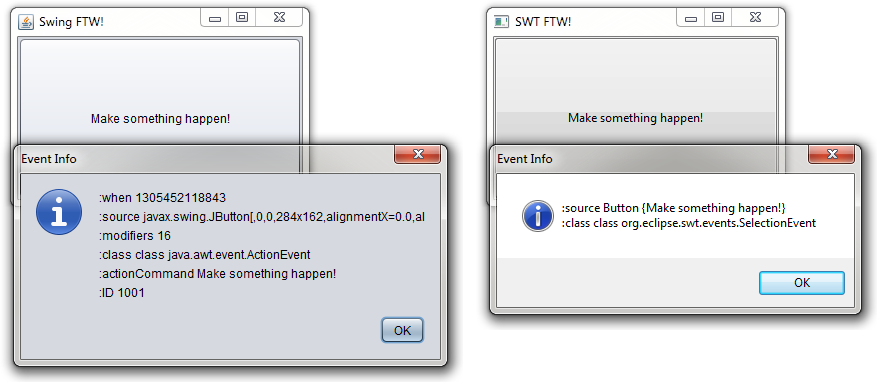
Full code here:
| Swing | SWT |
|---|---|
|
project.clj src/swingftw/core.clj |
project.clj src/swtftw/core.clj |
You can also clone this wiki repo and navigate to sources dir.
git clone https://santamon@github.com/santamon/GUIFTW.wiki.git