

[ Nexus | Installation | Changelog | Load Order |
Modlist Support: Cosmoem
Warning
You must update Fallout 4 to the latest version (1.11.191) on Steam to install this list.
- Installation
- Post-Installation and Optional Setup
- Updating the modlist
- Removing the Modlist
- Issues
- Credits and Thanks
Installing Cosmoem is relatively easy and, if you have Nexus Premium, will be a simple waiting game. If you are updating the modlist, you can safely skip to the updating section.
These steps are only required for installing the modlist for the first time. Additionally, many of these steps may be covered in other modlist installs, for new users I suggest reading through here regardless.
- Install Visual C++ x64.
- Install .NET Runtime 9.X.X Desktop x64.
- Install .NET 6.0 Runtime Desktop x64.
Warning
If you already have Visual C++ installed, please make sure you install it again and use the Repair option to get the latest version of the redistributables. Do NOT skip this step or MO2 and the game may fail to launch.
Warning
Larger Fallout 4 modlists require a significant amount of memory, running out of memory will result in crashes and other potential issues. Due to Cosmoem's size and number of files, this step is NOT optional. I do not care how much RAM or VRAM you have, please do this step.
To set up a Pagefile:
- Press
Win Key + R - Type
sysdm.cpl ,3and hitENTER - Navigate to Performance and click the box
Settings... - Click the Advanced tab at the top
- Under Virtual Memory click the box
Change... - Uncheck
Automatically Manageif it is checked - Select your disk drive, ideally your fastest solid state drive
- Click
Custom Size: - In the box next to Initial Size (MB), type
40960 - In the box next to Maximum Size (MB), type
40960 - Click
Set. - Click
OK. - Click
Apply. - Click
OK. - Restart your PC.
Tip
Your pagefile does not need to be on the same drive as your Wabbajack install or Steam install of the game.
ICYWW: Why do we need a Pagefile?
Fallout 4 is a very old game (originally released in 2011) that is built on the Creation Engine, a engine based off of the Gamebryo engine that was originally used for Morrowind (released in 2002, before I was born).
Through lots of experience and trial-and-error, we have discovered that increasing the window's pagefile can fix certain types of Fallout 4 crashes, the two most common examples being Unhandled native exception occurred at 0x7FF6ADC8DDDA and Unhandled native exception occurred at 0x0.
But why is this? Fallout 4 appears to use system memory in very unexpected ways, for example it will frequently dip into the pagefile memory despite there being available RAM. Fallout 4 heavily favors high speed, low latency RAM (the best you can get as of writing this is 6000MHz and CL30 for DDR5).
Important
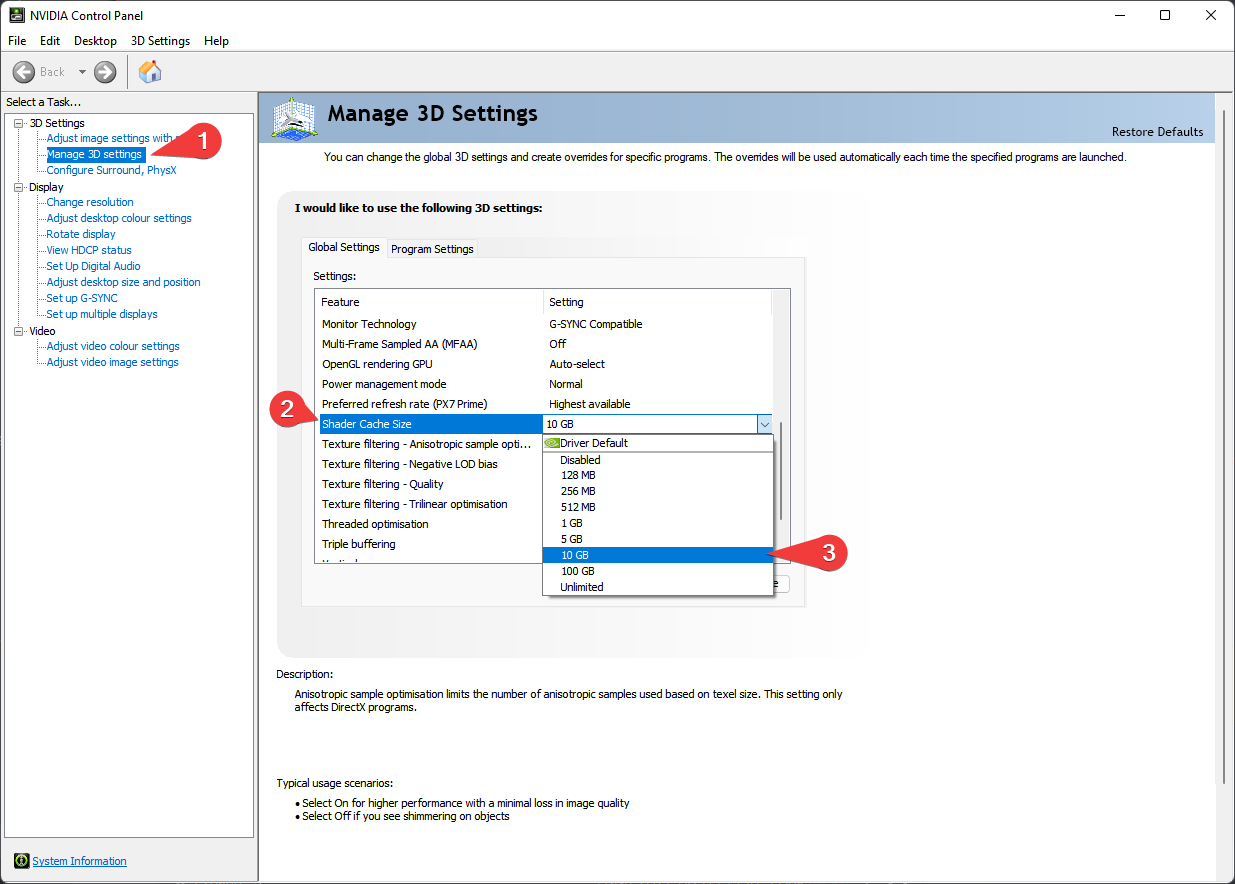
For NVIDIA users, it is recommended to boost the size of the shader cache. These settings have been shown to improve stability, while it may not be entirely necessary, it is still recommended.
To do this:
- Right-click on your desktop and select
NVIDIA Control Panel - Navigate and click
Manage 3D Settings - Scroll down the Global Settings tab until you see Shader Cache Size
- Double-click
Driver Defaultto the right of Shader Cache Size and select10 GB - Click
Applyin the bottom right hand corner - Exit out of the application
Warning
The English Steam version of Fallout 4 is the only supported version.
I understand that this may be frustrating for non-English speaking users or users with the GOG/Bethesda.net versions, but due to the core file differences between the different versions, I am only able to support one game version.
To change your Fallout 4's language:
- Right click on Fallout 4 in Steam
- Click
Properties - Click
Language - Set the Language to
English
To install Fallout 4 Creation Club content please do the following to avoid issues with tescan and remnants:
- Fresh install
- Open Fallout once (do not click download)
- Force close when prompted to download
- Re-open Fallout 4 and navigate to
Creations - Open the options menu and click "Download All Creation Club Content"
- Exit.
Once you have completed the pre-installation section, follow these steps to install Wabbajack:
-
Create an empty folder named
Wabbajackon the root of your drive, such asC:\Wabbajackfor example.- DO NOT place it in Program Files, User folders (such as Desktop, Documents, Downloads, OneDrive, etc.), in your Fallout 4's Steam folder, or in any folders related to the modlist itself (the downloads or install folder).
- The
Wabbajackfolder does not need to be on an SSD, but it makes installing faster. You can set this location to be on an HDD for the sake of saving space.
-
Download the latest version of Wabbajack and place the
Wabbajack.exefile inside the Wabbajack folder you created in Step 1. -
Double-click the
Wabbajack.exefile that is now inside your Wabbajack folder to set up the program.
Important
The list requires Wabbajack version 4.0.0.0 or later. Installing the modlist on older versions of Wabbajack will result in issues.
Caution
A legal copy of Fallout 4 Anniversary Edition is required. Pirated copies of the game will cause the installation to fail and even if you manage to somehow get around Wabbajack's built-in piracy prevention measures, F4SE does not work with the cracked exes.
Downloading and installing Cosmoem can take a while depending on your internet connection, PC specs, and if you have Nexus Premium. Without Premium, you will need to manually click the Slow Download button for each mod.
To install Cosmoem, complete the following steps.
- Open Wabbajack and click
Browse lists - Pick the Fallout 4 Anniversary Edition option from the game filter drop-down box (or use the search bar to find the modlist).
- Press the download arrow on the Cosmoem UI card and wait for it to download
- Set the
Installation Locationto a folder such asC:\Cosmoem.- DO NOT place it in Program Files, User folders (such as Desktop, Documents, Downloads, OneDrive, etc.), or in your Fallout 4's Steam folder
- The
Downloads Locationdoes not need to be on an SSD, but it makes installing faster. You can set this location to an HDD for the sake of saving space.
- Download the files from the Missing Manual Downloads section and place them in your designated
Downloads Locationfolder. - Press the
Installbutton. - Turn on your favorite show or a nice long video essay as Wabbajack does its thing. Alternatively read through this readme again.
- If the installation is successful, then rejoice and move onto post installation. If the installation is unsuccessful, follow the tips below or the discord server for support.
It is possible that you may encounter an error with Wabbajack when installing. Some common issues are listed below.
I'm having trouble downloading Non-Nexus files or specific files!
Big files can fail to download due to connection issues or website issues. You can either run Wabbajack again or download the missing file manually. If you decide to manually download the file, make sure to place the file(s) inside the folder you set as the Resource Download Location.
Wabbajack couldn't find my game folder!
Either buy the game or re-read the Pre-Installation section.
Unable to download Fallout4_Default.ini or Fallout4Prefs.ini:
This error means you failed to follow this Readme. Go back and follow the steps outlines in the Changing the Game Language section
Could not find part of the path "TEMP_BSA_FILES"
This is typically caused by a problem extracting zip files.
The quickest solution is as follows:
- Close Wabbajack.
- Go to your install folder and locate the
TEMP_BSA_FILESfolder (if it exists). - Delete that folder (if it exists).
- Restart Wabbajack.
- Restart the modlist installation.
If the TEMP_BSA_FILES folder does not exist, then delete the download file for the mod being referenced before restarting Wabbajack.
Note: Using the retry button will not work as Wabbajack does not understand that there was an issue with extraction and will not retry extraction steps.
My antivirus reports a virus with the program or modlist!
Windows 10/11 may automatically quarantine a key file which is needed for Mod Organizer. You can fix this by adding an exclusion for Mod Organizer in windows defender.
Sanity check error extracting file:
Wabbajack will sometimes have issues extracting files if they use special characters. If you encounter this issue in a Wabbajack log, please try the steps down below:
- Press
Win Key + R. - Type
intl.cpland hitENTER. - Navigate to Administrative and click
Change system locale.... - Change the Current system locale: to
English (United Kingdom). - Uncheck
Beta: Use Unicode UTF-8 for worldwide language support - Click
OK - Restart your PC and rerun the Wabbajack installer.
Wabbajack is crashing during the installation!
If you find yourself struggling to run Wabbajack without it crashing, freezing up, or blue-screening your PC, please try lowering Wabbajack's resource usage with these steps:
- Open Wabbajack.
- Click the Settings button in the bottom left corner of the Wabbajack window.
- Under the Performance box, lower each number for each category to half of what it is currently set.
- Continue Installation.
[!TIP] It is suggested to have a program installed on your PC that can open
.jsonfiles, like Notepad++ or Visual Studio Code
Cosmoem uses a Wabbajack feature called Stock Game to keep your Fallout 4 installation clean. All the files that you need to run the list are in a folder called Stock Game. You don’t need to copy anything at all.
- AFTER fully installed, right click base game fallout 4's Data folder(the folder including it's contents)(typically located at "C:\Program Files (x86)\Steam\steamapps\common\Fallout 4") -> Copy
- now paste it in Cosmoem/mods/
- make sure to enable the new "Data" "mod" IT WILL NOT FUNCTION IF YOU DON'T!
Warning
Antivirus programs are notorious for false flagging MO2's Virtual File System, which can and will cause crashes and other problems. Antivirus programs like BitDefender, Norton, and Webroot are especially aggressive, and you will need to fully remove them from your PC in order to actually launch the game through MO2. It is 2024, Windows Defender and being smart online is more than adequate to protect yourself from malicious software.
If you use Windows Defender, it is advised that you set up an exception for the modlist.
Setting up Windows Defender Exceptions:
- Press the Windows Key.
- Type "Windows Defender" in the search bar and select "Windows Security".
- Click on "Virus & threat protection" in the left pane.
- Click the "Manage settings" option under "Virus & threat protection settings".
- Scroll down to "Exclusions" and click "Add or remove exclusions".
- Windows Defender will prompt you with a run as administrator screen, just hit yes.
- Click the "Add an exclusion" button at the top and choose "Folder".
- Navigate to your Install folder for the list and click "Select Folder".
- (OPTIONAL) You can repeat these steps for the other executables:
- ModOrganizer.exe (
[Path to Modlist]\ModOrganizer.exe)
- ModOrganizer.exe (
Form 43 Error in MO2. / A DLL plugin has failed to load correctly.
Your installation is corrupt. Rerun Wabbajack and make sure to tick the Overwrite Installation box. If the error persists after a reinstall, then delete the [Path to Modlist]\mods folder, and rerun Wabbajack again.
Crashing on Startup
Create a thread in the #support channel of the discord, including all relevant crashlogs. There are several reasons why this might happen, and 99.9% of them are a corrupt installation.
Crashes during Gameplay
Fallout 4 is a notoriously buggy game and cramming thousands of mods into it is not gauranteed to always produce the most stable experience possible. Especially in heavier lists where you may be pushing the limitations of your hardware as a result of Fallout 4's old and unoptimized rendering pipeline.
If you find yourself crashing, then create a detailed (as can) report in the #support channel of the discord.
In order to get the best possible response please ensure that:
- Your crash is reproducible.
- You include all relevant crashlogs
- Provide details about the crash (what you were doing, where it took place, if there was an associated quest, etc). Details are necessary in order to quickly diagnose crashes.
Versioning for the list will adhere to the following format: MAJOR.MINOR.PATCH.
MAJOR: Any release with a number change here will be considered a major update as at least 1 area of the list was massively overhauled. These updates with NEVER be save safe.MINOR: Any release with a number change here will be considered a minor update, these updates will not be save safe, unless otherwise specified.PATCH: Any release with a number change here will be considered a patch, these updates should be save safe and will be used primarily for bugfixes.- In some rare cases, a fourth number will be used to designate a
HOTFIX. These will only be utilized in cases where the list is recompiled with no other changes.
Updating is like installing the list. Simply make sure your paths are the same and tick the overwrite installation button. Please keep in mind any mods you have added will be deleted when updating. To make sure that Wabbajack does not delete your added mods upon updating, prefix your mods with [NoDelete].
Important
Saves can be continued across Save-Safe updates. Updates will be indicated whether or not they are Save-Safe on the Changelog. It is suggested that you backup your saves before updating if you plan on continuing them.
Simply delete the Cosmoem folder. Congratulations, you have uninstalled Cosmoem.
Tip
If you encounter any bugs or issues while playing the list, the Cosmoem support server is preferred and will have the fastest turn around time for support.
- YOU for reading this.
- Apostasy for the readme base