


A DBeaver plugin that enables connectivity to Amazon Aurora DSQL databases with IAM authentication support.
This plugin installs and sets up the Aurora DSQL Connector for JDBC for DBeaver to connect to Amazon Aurora DSQL.
Features:
- IAM authentication configuration
- Automatic JDBC driver management for the Aurora DSQL connector
- DBeaver: Version 24.3.5 or later
- AWS Credentials: Configured AWS credentials for IAM authentication
- Java: JRE 21 or later (included with DBeaver 24.3.5+)
Windows users may encounter issues downloading the Aurora DSQL Connector for JDBC driver from Maven Central. To resolve this:
- Run DBeaver as "Administrator"
- Uncheck this setting - Windows > Preferences > Connections > "Use Windows Trust store"
Then proceed with the installation steps below.
- Open DBeaver
- Go to Help → Install New Software
- Click Add to add a new repository
- Enter:
- Name:
Aurora DSQL Plugin - Location:
https://awslabs.github.io/aurora-dsql-dbeaver-plugin/update-site/
- Name:
- Check Aurora DSQL Connector for JDBC
- Click Next, accept the license, and complete the installation
- Restart DBeaver when prompted
-
Click the New Database Connection
-
Select Aurora DSQL
-
Under Server, select one of the following for the Connect by setting
- Host
- to enable the user interface text inputs for the following fields:
- Endpoint: DSQL Cluster Endpoint
- Username: DSQL username (e.g. admin)
- AWS Profile: e.g. default - The standard profile used when no specific profile is specified
- AWS Region (Optional): must match the region where your DSQL cluster exists, otherwise authentication will fail
- to enable the user interface text inputs for the following fields:
- URL
- JDBC URL - in this format :
jdbc:aws-dsql:postgresql://{cluster_endpoint}/{database}?user=admin&profile=default®ion=us-east-1 - Note: In this mode, only the URL input is enabled. In order to add parameters to the JDBC connection string, use the URL query parameters format starting with ? as the first parameter and append an & for subsequent parameters.
- JDBC URL - in this format :
- Host
-
Click Test Connection to verify the Aurora DSQL connection works
-
Click Finish
If you see a missing driver icon or connection errors, the Aurora DSQL (Community Plugin) may not be installed in your current DBeaver version. See below some examples of errors and how to fix them:
-
Creating a new connection with the missing driver:
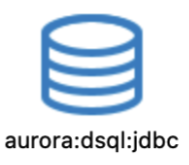
-
Attempting to connect without the driver:
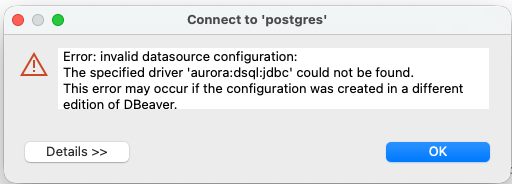
Cause: When multiple DBeaver versions are installed, connection settings are shared but drivers are installed per application.
Solution: Reinstall the Aurora DSQL (Community plugin) by following the installation steps above.
If you encounter a PKIX path building failed error when connecting to Aurora DSQL, your DBeaver installation may not have the required SSL certificates.
Cause: DBeaver uses its own bundled Java keystore which may not include all certificates from your system's trust store.
Solution: Import the required CA certificates from your local Java installation into DBeaver by following the DBeaver wiki guide.
- Apache Maven: 3.9.11 or later
- Run
mvn clean install -P jars - Run
mvn clean package -P packaging - The local repo is located in the folder
software.aws.aurora.dsql.dbeaver.updatesite > target > repository - Follow the installation instructions above and use the local repo location instead of the URL.
See CONTRIBUTING for more information.
This project is licensed under the Apache-2.0 License.