-
Minimum Requirements:
- Firefox 97 and newer
- Windows 7 and newer
- MacOS 11 and newer (MacOS 10 since Firefox 99)
- Linux
-
Download the
chromefolder and put it in the root folder (Also known as the user profile folder. You can easily get there fromabout:profiles) -
Go to
about:configand activate the keys below:
toolkit.legacyUserProfileCustomizations.stylesheetssvg.context-properties.content.enabledlayout.css.color-mix.enabled


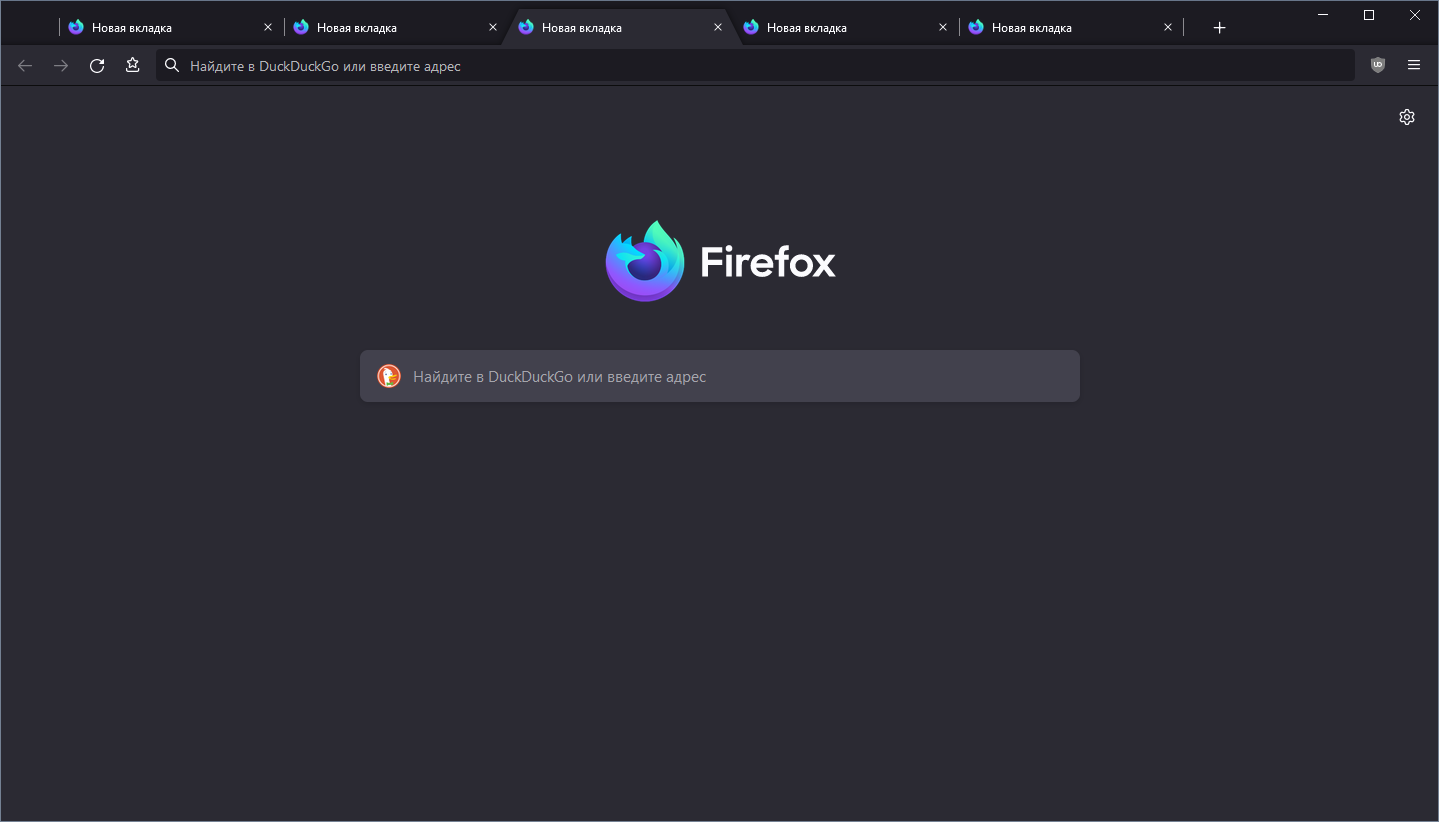
- Specify the desired shape of the tabs. Create and activate one of the keys below:
Style.ProtonStyle.PhotonStyle.WaveFoxStyle.ChromeStyle.EdgeStyle.AustralisStyle.Chrome-Old
- Create and activate other keys. This step is optional
| Style | Light | Dark |
|---|---|---|
| WaveFox |  |
 |
| Proton |  |
 |
| Photon |  |
 |
| Chrome |  |
 |
| Edge |  |
 |
| Chrome (Legacy) |  |
 |
| Australis |  |
 |
Download and install MicaForEveryone from the link below.
https://github.com/minusium/MicaForEveryone/releases
Once installed, create and activate the key below. For transparency to work correctly, turn off the accent color in Windows 11 personalization and select the system theme in Firefox.


Style.Win11-Mica-Acrylic
There are two shadows available for use. Each shadow is completely independent. In most situations, one shadow is enough, but there are situations where a second shadow can be useful. Shadows are formed from a combination of blur and saturation.



Blur:
Style.Main-Shadow-Blur-LowStyle.Main-Shadow-Blur-MediumStyle.Main-Shadow-Blur-HighStyle.Main-Shadow-Blur-Very-High
Saturation:
Style.Main-Shadow-Saturation-LowStyle.Main-Shadow-Saturation-MediumStyle.Main-Shadow-Saturation-HighStyle.Main-Shadow-Saturation-Very-High
Blur:
Style.Additional-Shadow-Blur-LowStyle.Additional-Shadow-Blur-MediumStyle.Additional-Shadow-Blur-HighStyle.Additional-Shadow-Blur-Very-High
Saturation:
Style.Additional-Shadow-Saturation-LowStyle.Additional-Shadow-Saturation-MediumStyle.Additional-Shadow-Saturation-HighStyle.Additional-Shadow-Saturation-Very-High
It is possible to set the saturation of tab separators and disable the first separator.


Style.Separators-Saturation-LowStyle.Separators-Saturation-NormalStyle.Separators-Saturation-HighStyle.Separators-Saturation-Very-HighStyle.Disable-First-Separator
Compatible with AMO. Since shadows do not work with these themes, the selected tab may be hard to see. It is possible to activate the tab frame for better visibility.


Style.AMO-Tab-Frame
By default, context menus follow the selected interface density, but it is possible to set a fixed size.
| Compact | Normal | Touch |
|---|---|---|
 |
 |
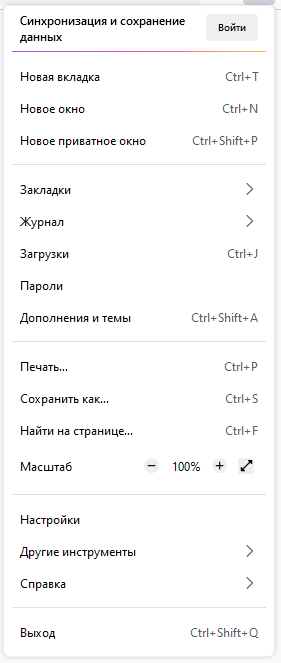 |
Style.Context-Menus-CompactStyle.Context-Menus-NormalStyle.Context-Menus-Touch
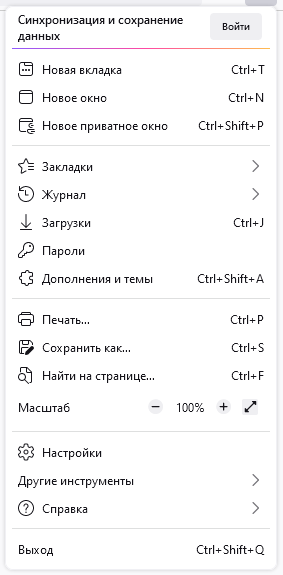
There are two types of fluent style icons from Microsoft.
| Regular | Filled |
|---|---|
 |
 |
Style.Menu-Icons-RegularStyle.Menu-Icons-Filled
Ability to control the width of pinned tabs.


Style.Pinned-Tabs-Width-Offset-LowStyle.Pinned-Tabs-Width-Offset-MediumStyle.Pinned-Tabs-Width-Offset-HighStyle.Pinned-Tabs-Width-Offset-Very-High
Added the ability to force drag space on or off.


Style.Left-Drag-Space-DisabledStyle.Right-Drag-Space-DisabledStyle.Drag-Space-Above-Tabs-All-States-DisabledStyle.Drag-Space-Above-Tabs-All-States-Enabled
It is possible to make the new tab button as a pinned tab.

Style.New-Tab-Button-Like-Pinned-Tab
It is possible to make the tabs even more compact. Works only with compact mode.


Style.Compact-Plus