


A Visual Studio Code extension for Ruff, an extremely fast Python linter and code formatter, written in Rust. Available on the Visual Studio Marketplace.
Ruff can be used to replace Flake8 (plus dozens of plugins), Black, isort, pyupgrade, and more, all while executing tens or hundreds of times faster than any individual tool.
The extension ships with ruff==0.16.9.
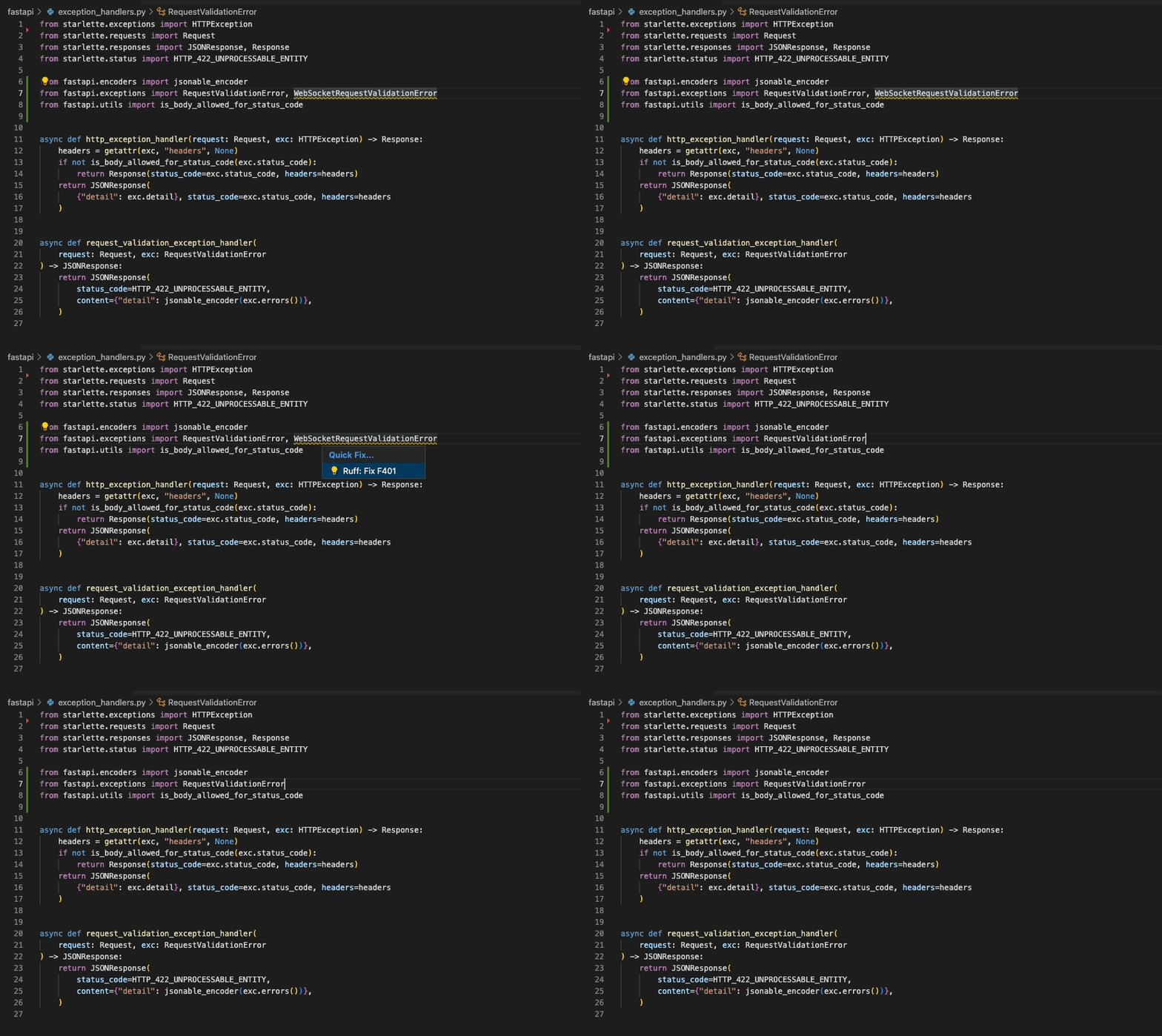
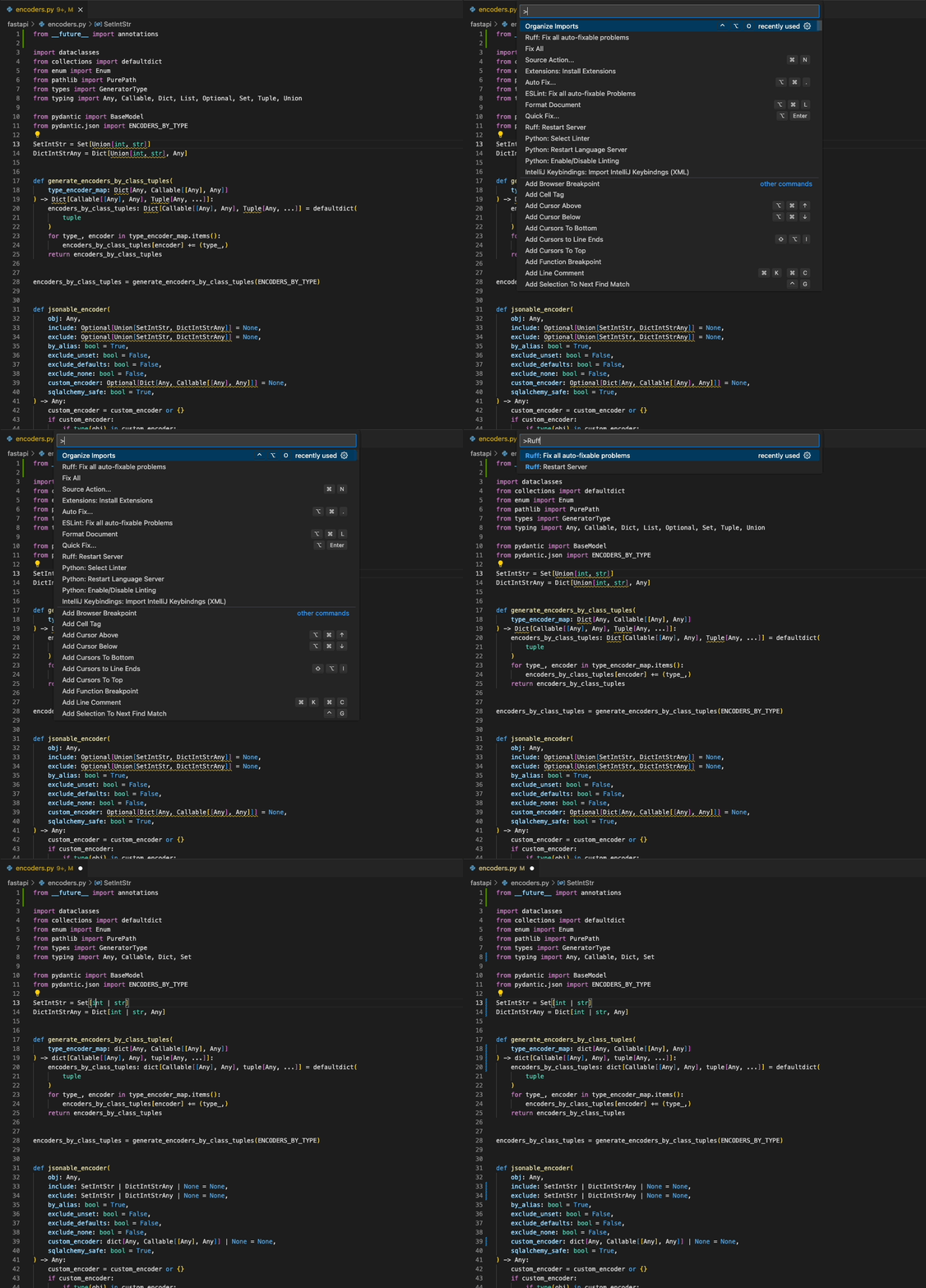

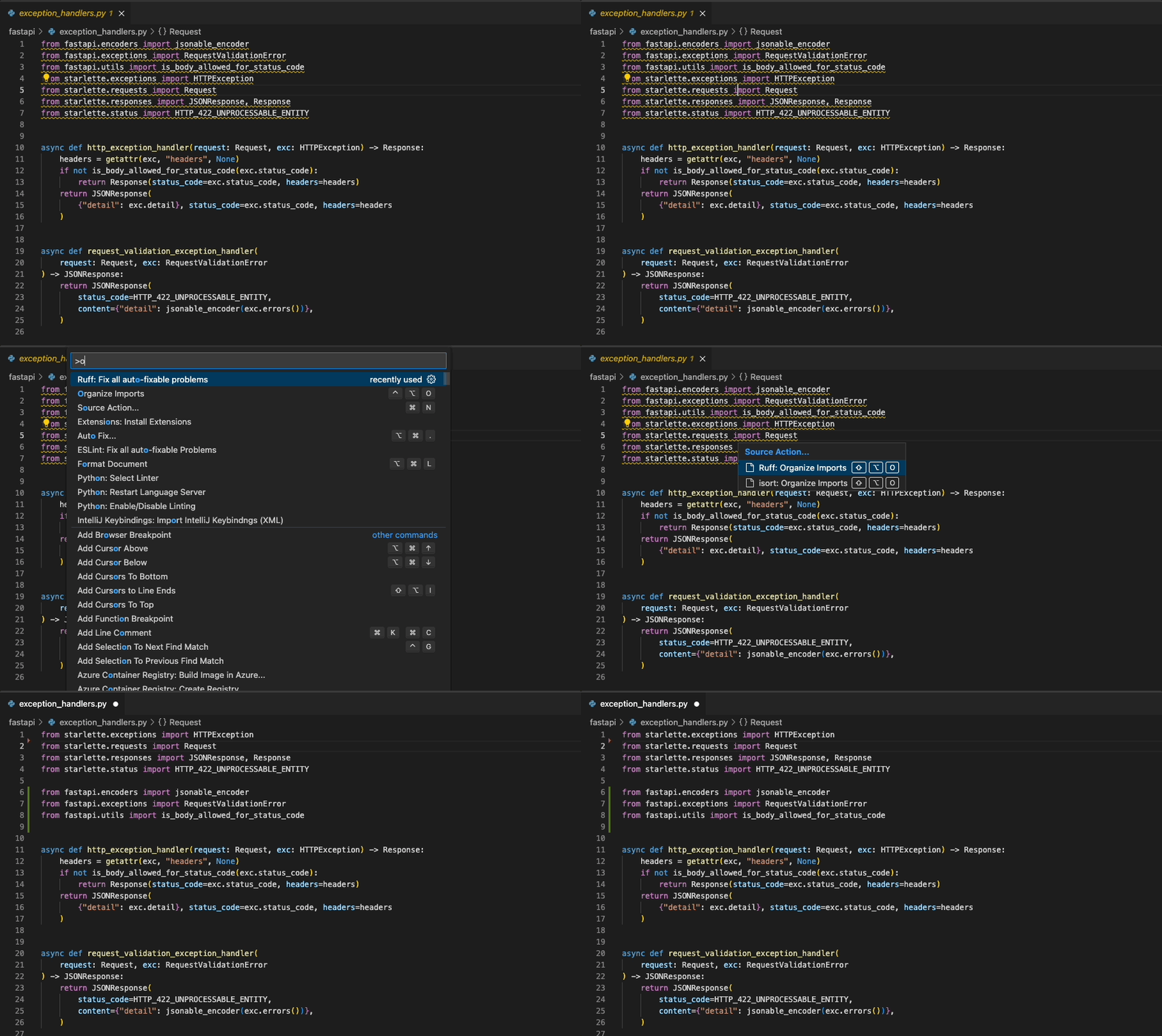
This extension does not require any additional extensions to function, but we recommend installing either of the following:
- The VS Code Python Environments extension. Note that this requires VS Code 1.100 or later.
- A version of the VSCode Python extension that supports Python 3.8+.
When either of these is available, the Ruff extension uses it to locate the Ruff binary in the
active environment. If no binary is found there, or both extensions are unavailable, Ruff falls back
to the Ruff binary found on the PATH or bundled with the extension.
Reload VS Code after installing either extension to enable Python environment detection.
Once installed in Visual Studio Code, ruff will automatically execute when you open or edit a
Python or Jupyter Notebook file, or a Ruff configuration file (pyproject.toml, ruff.toml, or
.ruff.toml).
If you want to disable Ruff, you can disable this extension per workspace in Visual Studio Code.
Ruff's automatic fixes are labeled as "safe" and "unsafe". By default, the "Fix all" action will not apply unsafe
fixes. However, unsafe fixes can be applied manually with the "Quick fix" action. Application of unsafe fixes when
using "Fix all" can be enabled by setting unsafe-fixes = true in your Ruff configuration file.
See the Ruff fix docs for more details on how fix safety works.
The extension supports Jupyter Notebooks via the Notebook Document Synchronization capabilities introduced in version 3.17 of the Language Server Protocol, including diagnostics, code actions, and formatting.
Jupyter Notebook support was stabilized in Ruff 0.6.0, and
notebooks are now linted and formatted by default. Earlier versions require explicitly including notebooks
with the extend-include setting in the Ruff
configuration file:
[tool.ruff]
extend-include = ["*.ipynb"]
For more information, refer to the Jupyter Notebook discovery section of the Ruff documentation.
New in v2024.32.0
The extension supports loading in an untrusted workspace.
In an untrusted workspace, it always uses the bundled Ruff executable, regardless of any executable or
Python environment settings. With Ruff 0.17.0 or later, formatting always uses Ruff's built-in
formatter rather than the uv backend.
The following settings are not supported in an untrusted workspace:
Refer to the Ruff Language Server documentation for a full list of settings available in the extension.
You can configure Ruff to format Python code on-save by enabling the editor.formatOnSave action in
settings.json, and setting Ruff as your default formatter:
{
  "[python]": {
    "editor.formatOnSave": true,
    "editor.defaultFormatter": "charliermarsh.ruff"
  }
}
And, for Jupyter Notebooks:
{
  "notebook.formatOnSave.enabled": true,
  "[python]": {
    "editor.defaultFormatter": "charliermarsh.ruff"
  }
}
And for Markdown code blocks:
{
  "[markdown]": {
    "editor.formatOnSave": true,
    "editor.defaultFormatter": "charliermarsh.ruff"
  }
}
You can configure Ruff to fix lint violations on-save by enabling the source.fixAll action in
settings.json:
{
  "[python]": {
    "editor.codeActionsOnSave": {
      "source.fixAll": "explicit"
    }
  }
}
And, for Jupyter Notebooks:
{
  "notebook.codeActionsOnSave": {
    "notebook.source.fixAll": "explicit"
  }
}
Similarly, you can configure Ruff to organize imports on-save by enabling the
source.organizeImports action in settings.json:
{
  "[python]": {
    "editor.codeActionsOnSave": {
      "source.organizeImports": "explicit"
    }
  }
}
And, for Jupyter Notebooks:
{
  "notebook.codeActionsOnSave": {
    "notebook.source.organizeImports": "explicit"
  }
}
Taken together, you can configure Ruff to format, fix, and organize imports on-save via the
following settings.json:
{
  "[python]": {
    "editor.formatOnSave": true,
    "editor.codeActionsOnSave": {
      "source.fixAll": "explicit",
      "source.organizeImports": "explicit"
    },
    "editor.defaultFormatter": "charliermarsh.ruff"
  }
}
And, for Jupyter Notebooks:
{
  "notebook.formatOnSave.enabled": true,
  "notebook.codeActionsOnSave": {
    "notebook.source.fixAll": "explicit",
    "notebook.source.organizeImports": "explicit"
  },
  "[python]": {
    "editor.defaultFormatter": "charliermarsh.ruff"
  }
}
Note: if you're using Ruff to organize imports in VS Code and also expect to run Ruff from the
command line, you'll want to enable Ruff's isort rules by adding "I" to your
extend-select.
Note: The above-mentioned Notebook configurations run the action for each cell individually.
This is how VS Code handles these Notebook actions and is unrelated to the Ruff extension. To run them on
the entire notebook at once, use the Ruff prefixed commands such as
Ruff: Organize Imports and Ruff: Fix all auto-fixable problems.
If you're using the VS Code Python extension,
you can configure VS Code to fix violations on-save using Ruff, then re-format with the Black extension,
via the following settings.json:
{
  "[python]": {
    "editor.formatOnSave": true,
    "editor.codeActionsOnSave": {
      "source.fixAll": "explicit"
    },
    "editor.defaultFormatter": "ms-python.black-formatter"
  }
}
If you'd like to use Ruff as a linter, but continue to sort imports with the isort extension,
you can disable Ruff's import-sorting capabilities via the following settings.json:
{
  "[python]": {
    "editor.codeActionsOnSave": {
      "source.fixAll": "explicit",
      "source.organizeImports": "explicit"
    }
  },
  "ruff.organizeImports": false
}
If you'd like to run Ruff on-save, but avoid allowing other extensions to run on-save, you can
use Ruff's scoped source.fixAll and source.organizeImports actions via the following settings.json:
{
  "[python]": {
    "editor.codeActionsOnSave": {
      "source.fixAll.ruff": "explicit",
      "source.organizeImports.ruff": "explicit"
    }
  }
}
If you'd like to run Ruff, but disable code formatting (by Ruff, or by another formatter), be sure
to unset the editor.defaultFormatter in settings.json:
{
  "[python]": {
    "editor.defaultFormatter": null,
    "editor.codeActionsOnSave": {
      "source.fixAll": "explicit"
    }
  }
}The Ruff VS Code extension will respect any Ruff configuration as defined in your project's
pyproject.toml, ruff.toml, or .ruff.toml file (see: Configuring Ruff in the Ruff documentation).
In general, we recommend configuring Ruff via pyproject.toml or ruff.toml so that your
configuration is shared between the VS Code extension and the command-line tool, and between all
contributors to the project.
You can configure some common settings in VS Code directly, like ruff.lineLength (the line length for the linter
and formatter) or ruff.lint.select (the enabled lint rules):
{
  "ruff.lineLength": 88,
  "ruff.lint.select": ["C", "E", "F", "W"]
}
To use a custom configuration file, set the ruff.configuration setting to the path of your
ruff.toml or pyproject.toml file:
{
  "ruff.configuration": "/path/to/ruff.toml"
}
Finally, to use a common Ruff configuration across all projects, consider creating a user-specific
pyproject.toml or ruff.toml file as described in the FAQ.
Refer to the migration guide for more details.
| Command | Description |
|---|---|
| Ruff: Fix all auto-fixable problems | Fix all auto-fixable problems |
| Ruff: Format Imports | Organize imports |
| Ruff: Format Document | Format the entire document |
| Ruff: Restart Server | Force restart the linter server |
| Ruff: Print debug information | Print debug information about the language server |
| Ruff: Show client logs | Open the Ruff output channel |
| Ruff: Show server logs | Open the Ruff Language Server output channel |
If you encounter any issues with the extension or the language server, please refer to the logs in the corresponding output channel in VS Code. The extension logs are in the "Ruff" output channel and the language server logs are in the "Ruff Language Server" output channel.
To open the output panel, use the Output: Show Output Channels command in the command palette
(Ctrl+Shift+P or Cmd+Shift+P), then select "Ruff" or "Ruff Language Server". Alternatively,
you can use the Ruff: Show client logs and Ruff: Show server logs command to open the "Ruff"
and "Ruff Language Server" output channel respectively. The Ruff: Print debug information command
can be used to print debug information which can include details about the current open file.
The default log level for the extension is info which can be changed from the output panel using
the settings icon in the top right corner of the panel.
The default log level for the language server is info which can be changed using the ruff.logLevel
setting in your settings.json:
{
  "ruff.logLevel": "info"
}
The language server logs can be directed to a file by setting the ruff.logFile setting in
your settings.json:
{
  "ruff.logFile": "/path/to/ruff.log"
}
To capture the LSP messages between the editor and the server, set the ruff.trace.server
setting to either messages or verbose in your settings.json:
{
  "ruff.trace.server": "messages"
}
This will be visible in the "Ruff Language Server Trace" output channel. The difference between
messages and verbose is that messages only logs the method name for both the request
and response, while verbose also logs the request parameters sent by the client and the
response result sent by the server.
The extension also displays certain information in the status bar. This can be pinned to the status bar as a permanent item.
How to pin the Ruff status item in VS Code toolbar?

The status bar item displays the status of the Ruff language server. Click it to open the Ruff output channel.
MIT
