-
Notifications
You must be signed in to change notification settings - Fork 85
Added Gesture Control with OpenVINO #393
New issue
Have a question about this project? Sign up for a free GitHub account to open an issue and contact its maintainers and the community.
By clicking “Sign up for GitHub”, you agree to our terms of service and privacy statement. We’ll occasionally send you account related emails.
Already on GitHub? Sign in to your account
Merged
adrianboguszewski
merged 18 commits into
openvinotoolkit:master
from
vijaykr458:gesture-control-feature
Sep 29, 2025
Merged
Changes from 14 commits
Commits
Show all changes
18 commits
Select commit
Hold shift + click to select a range
2e602e0
Added Gesture Control with OpenVINO
vijaykr338 a8f6870
changed the directory
vijaykr338 95664b5
added a readme
vijaykr338 430312f
fixed the utils files, added the models
vijaykr338 5706836
removed QR
vijaykr338 697078c
Update apps/gesture_control/README.md
vijaykr458 ccb5b6b
Update apps/gesture_control/src/openvino_models.py
vijaykr458 749e609
Update apps/README.md
vijaykr458 2be5a10
Update apps/gesture_control/src/benchmark_dialog.py
vijaykr458 3719c74
Update apps/gesture_control/src/gesture_engine.py
vijaykr458 addc254
Update hand_landmark.py
vijaykr458 0abfa98
Merge branch 'master' into gesture-control-feature
vijaykr458 1bc1bf9
changed dir_name to palm_pilot
vijaykr338 98719c2
Merge branch 'master' into gesture-control-feature
adrianboguszewski 5b94a3c
Update apps/palm_pilot/README.md
adrianboguszewski f4de2d5
Merge branch 'master' into gesture-control-feature
adrianboguszewski 209d745
Update requirements.txt
adrianboguszewski 5a4cb1c
Update README.md
adrianboguszewski File filter
Filter by extension
Conversations
Failed to load comments.
Loading
Jump to
Jump to file
Failed to load files.
Loading
Diff view
Diff view
There are no files selected for viewing
This file contains hidden or bidirectional Unicode text that may be interpreted or compiled differently than what appears below. To review, open the file in an editor that reveals hidden Unicode characters.
Learn more about bidirectional Unicode characters
This file contains hidden or bidirectional Unicode text that may be interpreted or compiled differently than what appears below. To review, open the file in an editor that reveals hidden Unicode characters.
Learn more about bidirectional Unicode characters
| Original file line number | Diff line number | Diff line change |
|---|---|---|
| @@ -0,0 +1,194 @@ | ||
| # PalmPilot - Gesture Control with OpenVINO™ | ||
|
|
||
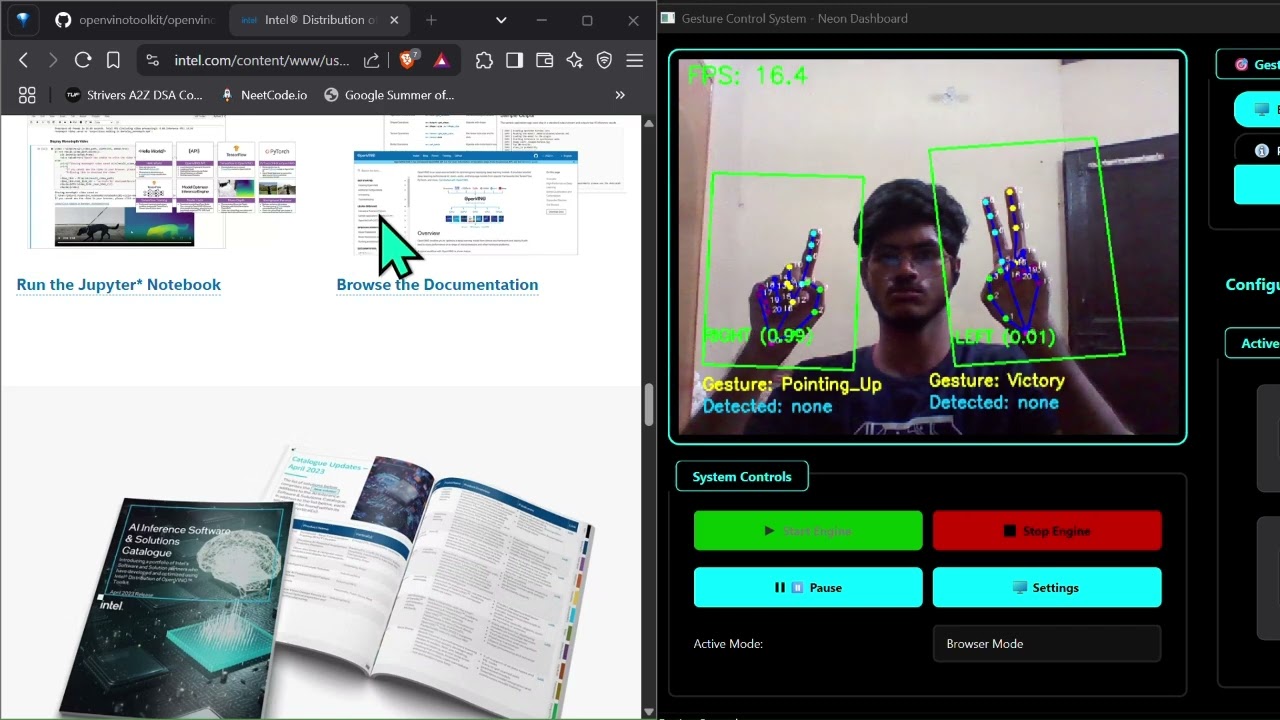
| Control your computer with hand gestures using real-time hand detection and OpenVINO AI models. Perfect for presentations, media control, gaming, and system navigation. | ||
|
|
||
| [](https://www.youtube.com/watch?v=U29NRoX4sjk) | ||
|
|
||
| ## Quick Launch using Setup Scripts | ||
|
|
||
| If you want a **quick setup** without manually installing dependencies, use the provided installer scripts. These scripts will **automatically configure** everything needed to run the PalmPilot Demo. | ||
|
|
||
| ### **For Windows** | ||
| 1. Download the `install.bat` and `run.bat` files to your local directory. | ||
| 2. Double-click `install.bat` to install dependencies and set up the environment. | ||
| 3. After installation, double-click `run.bat` to start the demo. | ||
|
|
||
| ### **For Linux and MacOS** | ||
| 1. Download the `install.sh` and `run.sh` files to your local directory. | ||
| 2. First, ensure the installer scripts have execute permissions: | ||
| ```bash | ||
| chmod +x install.sh run.sh | ||
| ``` | ||
| 3. Run the installer to set up everything: | ||
| ```bash | ||
| ./install.sh | ||
| ``` | ||
| 4. After installation, start the demo by running: | ||
| ```bash | ||
| ./run.sh | ||
| ``` | ||
|
|
||
| These scripts will handle cloning the repository, creating the virtual environment, and installing dependencies automatically. If you prefer a manual setup, follow Steps 1-3 below. | ||
|
|
||
| ## Manual Environment Setup | ||
|
|
||
| Here are the steps involved in this demo: | ||
| - Step 1: Install Python and prerequisites | ||
| - Step 2: Set up the environment | ||
| - Step 3: Run the Application | ||
|
|
||
| Now, let's dive into the steps starting with installing Python. | ||
|
|
||
| ## Step 0 | ||
| Star the [repository](https://github.com/openvinotoolkit/openvino_build_deploy) (optional, but recommended) | ||
|
|
||
| ## Step 1 | ||
| This project requires Python 3.11 and a few libraries. If you don't have Python installed on your machine, go to [https://www.python.org/downloads/](https://www.python.org/downloads/) and download the latest version for your operating system. Follow the prompts to install Python, making sure to check the option to add Python to your PATH environment variable. | ||
|
|
||
| Install libraries and tools: | ||
| ```bash | ||
| sudo apt install git python3-venv python3-dev | ||
| ``` | ||
| _NOTE: If you are using Windows, you may need to install [Microsoft Visual C++ Redistributable](https://aka.ms/vs/16/release/vc_redist.x64.exe) also._ | ||
|
|
||
| ## Step 2 | ||
|
|
||
| ### 1. Clone the Repository | ||
| To clone the repository, run the following command: | ||
| ```bash | ||
| git clone https://github.com/openvinotoolkit/openvino_build_deploy.git | ||
| ``` | ||
| The above will clone the repository into a directory named "openvino_build_deploy" in the current directory. Then, navigate into the directory using the following command: | ||
| ```bash | ||
| cd openvino_build_deploy/demos/gesture_control_demo | ||
| ``` | ||
|
|
||
| ### 2. Create a virtual environment | ||
| To create a virtual environment, open your terminal or command prompt and navigate to the directory where you want to create the environment. Then, run the following command: | ||
| ```bash | ||
| python3 -m venv venv | ||
| ``` | ||
| This will create a new virtual environment named "venv" in the current directory. | ||
|
|
||
| ### 3. Activate the environment | ||
| Activate the virtual environment using the following command: | ||
| ```bash | ||
| source venv/bin/activate # For Unix-based operating system such as Linux or macOS | ||
| ``` | ||
| _NOTE: If you are using Windows, use `venv\Scripts\activate` command instead._ | ||
|
|
||
| This will activate the virtual environment and change your shell's prompt to indicate that you are now working within that environment. | ||
|
|
||
| ### 4. Install the Packages | ||
| To install the required packages, run the following commands: | ||
| ```bash | ||
| python -m pip install --upgrade pip | ||
| pip install -r requirements.txt | ||
| ``` | ||
|
|
||
| ## Step 3 | ||
|
|
||
| ### Basic Usage | ||
| To run the application with webcam input: | ||
| ```bash | ||
| python main.py --stream 0 | ||
| ``` | ||
|
|
||
| ### GUI Mode | ||
| To launch the full GUI interface: | ||
| ```bash | ||
| python gui_main.py | ||
adrianboguszewski marked this conversation as resolved.
Outdated
Show resolved
Hide resolved
|
||
| ``` | ||
|
|
||
| **Using the GUI:** | ||
| 1. **Launch the GUI** - The main dashboard will open with the "Gesture Engine Offline" status | ||
| 2. **Start the Engine** - Click the "Start Engine" button in the Engine Controls section | ||
| 3. **Select Mode** - Choose from the available gesture modes: | ||
| - Browser Mode | ||
| - Game Mode (Racing) | ||
| - Media Player Mode | ||
| - PowerPoint Mode | ||
| - Volume Control Mode | ||
| 4. **Configure Gestures** - Use the "Edit Mode" button to customize gesture mappings for each mode | ||
| 5. **Dock Mode** - After starting the engine, a compact dock window will open showing: | ||
| - Live camera feed with gesture detection | ||
| - Current mode selector dropdown | ||
| - Pause/Stop controls | ||
| - QR code for mobile access | ||
|
|
||
| ### Command Line Options | ||
| The application currently supports the following option: | ||
| ```bash | ||
| python main.py --stream SOURCE | ||
| ``` | ||
|
|
||
| Where SOURCE can be: | ||
| - `0` for default webcam | ||
| - Path to a video file for video input | ||
|
|
||
| ## Supported Gestures | ||
|
|
||
| - **Open Hand**: Cursor control | ||
| - **Closed Fist**: Click actions | ||
| - **Peace Sign**: Scroll mode | ||
| - **Thumbs Up/Down**: Volume control | ||
| - **Two-Hand Steering**: Racing game control | ||
| - **Index Finger Bent**: Navigation controls | ||
| - **I Love You Sign**: Special actions | ||
|
|
||
| ## Application Modes | ||
|
|
||
| ### Browser Mode | ||
| **Left Hand Gestures:** | ||
| - **Bending Index Finger**: Left mouse click | ||
| - **Bending Index + Middle Finger**: Right mouse click | ||
| - **Closed Fist**: Speech to Text (Windows + H) | ||
| - **I Love You Sign**: Tab switcher (Ctrl + Shift + Tab) | ||
|
|
||
| **Right Hand Features:** | ||
| - **Cursor Control**: Controlled by tip of index finger | ||
| - **Scrolling**: Scroll up/down gestures | ||
| - **I Love You Gesture**: Toggles cursor to scroll mode | ||
|
|
||
| ### Media Player Mode | ||
| **Left Hand Gestures:** | ||
| - **Bending Index Finger**: Mute (M key) | ||
| - **Bending Index + Middle Finger**: Skip 10 seconds backwards | ||
|
|
||
| **Right Hand Gestures:** | ||
| - **Bending Index Finger**: Play/Pause (Spacebar) | ||
| - **Bending Index + Middle Finger**: Skip 10 seconds forward | ||
|
|
||
| **Volume Control:** | ||
| - **Pinch Out**: Increase volume | ||
| - **Pinch In**: Decrease volume | ||
|
|
||
| ### Racing Game Mode | ||
| - **Two-hand steering control**: Uses hand detector model for faster responsiveness | ||
| - **Steering Logic**: | ||
| - Left hand lower than right hand = Turn left (φ <= -13) | ||
| - Right hand lower than left hand = Turn right (φ >= 13) | ||
| - **Natural steering feel**: Mimics real steering wheel interaction | ||
| - **Accelerate/Brake zones**: Based on hand positioning | ||
|
|
||
| For detailed information about all available modes and their gesture mappings, visit our comprehensive documentation at: [https://palm-pilot-docs.vercel.app/docs/gesture-control-system/modes](https://palm-pilot-docs.vercel.app/docs/gesture-control-system/modes) | ||
|
|
||
| ## Configuration | ||
|
|
||
| The application uses a JSON configuration file (`gesture_config.json`) that is automatically created on first run. You can customize: | ||
|
|
||
| - Gesture mappings and actions | ||
| - Detection parameters | ||
| - Application-specific modes | ||
| - Device settings | ||
|
|
||
| ## Requirements | ||
|
|
||
| - **Python**: 3.11 | ||
| - **OpenVINO**: 2025.2+ | ||
| - **OpenCV**: 4.10+ | ||
| - **Camera**: USB webcam or built-in camera | ||
| - **OS**: Windows 10/11, Ubuntu 20.04+, macOS 10.15+ | ||
|
|
||
| [//]: # (telemetry pixel) | ||
| <img referrerpolicy="no-referrer-when-downgrade" src="https://static.scarf.sh/a.png?x-pxid=7003a37c-568d-40a5-9718-0d021d8589ca&project=apps/palm_pilot&file=README.md" /> | ||
Oops, something went wrong.
Add this suggestion to a batch that can be applied as a single commit.
This suggestion is invalid because no changes were made to the code.
Suggestions cannot be applied while the pull request is closed.
Suggestions cannot be applied while viewing a subset of changes.
Only one suggestion per line can be applied in a batch.
Add this suggestion to a batch that can be applied as a single commit.
Applying suggestions on deleted lines is not supported.
You must change the existing code in this line in order to create a valid suggestion.
Outdated suggestions cannot be applied.
This suggestion has been applied or marked resolved.
Suggestions cannot be applied from pending reviews.
Suggestions cannot be applied on multi-line comments.
Suggestions cannot be applied while the pull request is queued to merge.
Suggestion cannot be applied right now. Please check back later.
Uh oh!
There was an error while loading. Please reload this page.