


📊 Generate insightful visual reports from Git.
📘 Documentation: gitstats.readthedocs.io 📊 GitStats Gallery: shenxianpeng.dev/gitstats/gallery/
Table of Contents
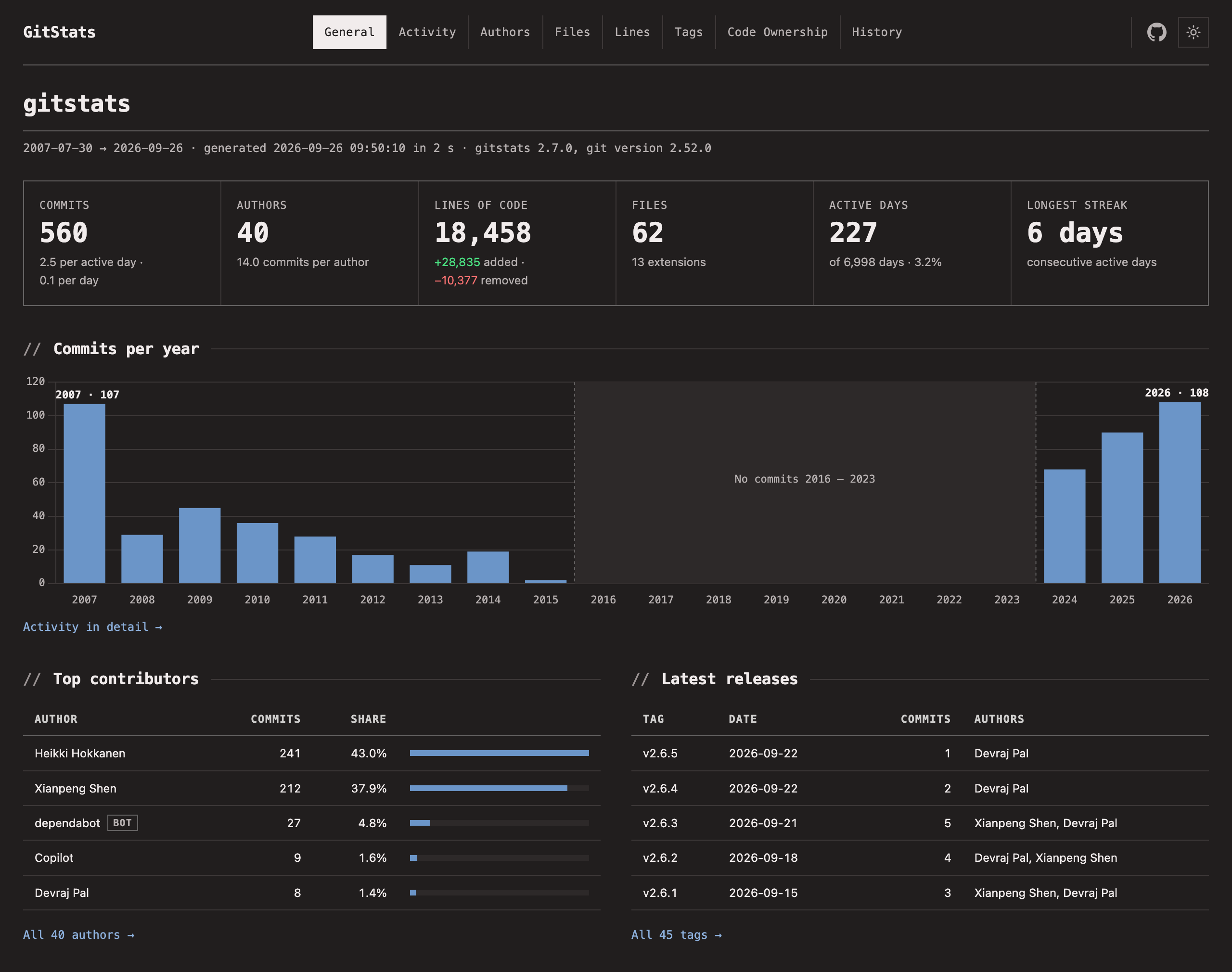
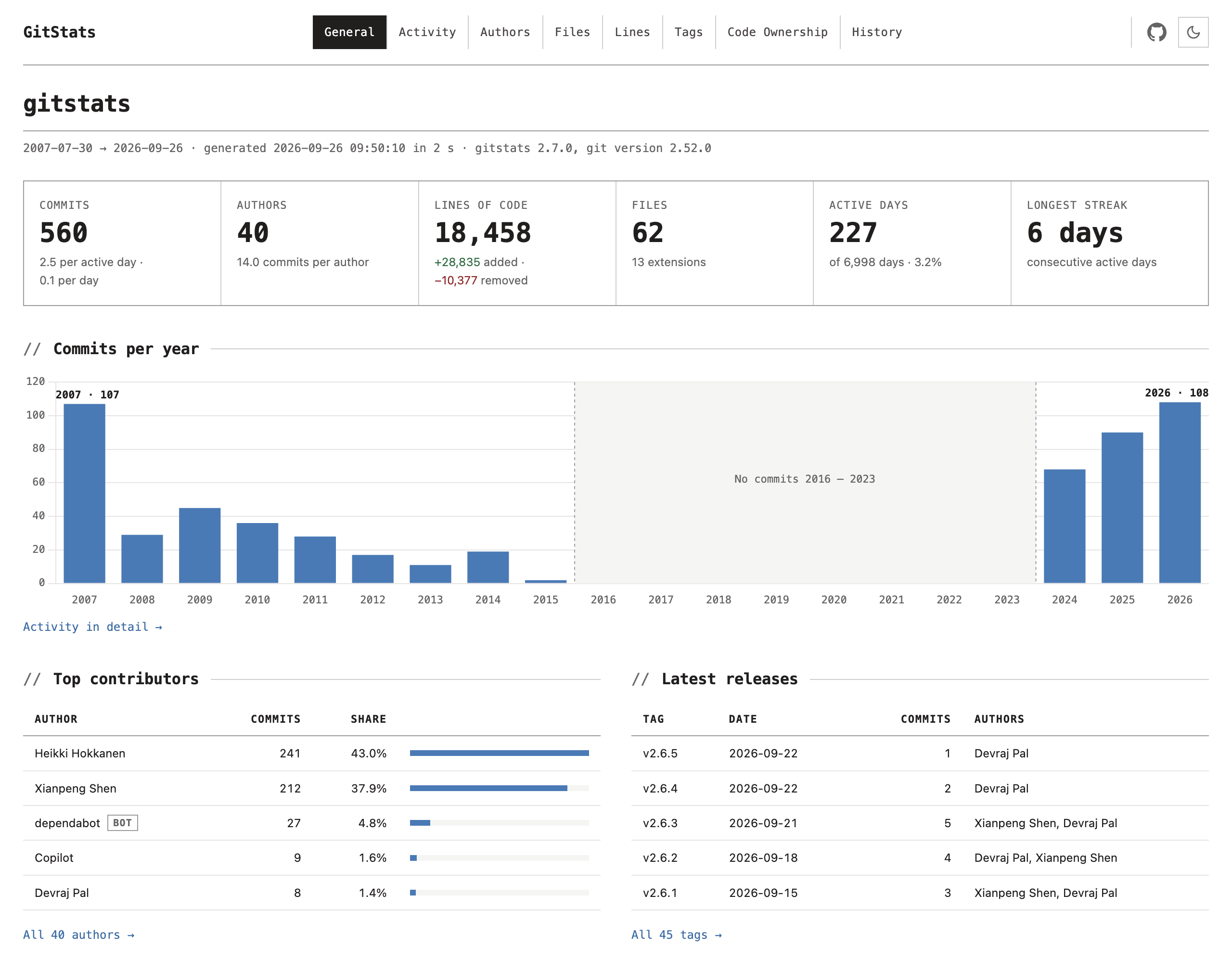
gitstats . generates this gitstats report:
Check out the GitStats Gallery for live reports on the world's largest open-source projects — auto-generated weekly — and its AI-assisted commits page: how many of each project's commits name an AI coding assistant, quarter by quarter. Its counts can be downloaded as JSON or CSV, and each quarter is kept as it was first published. Its Organizations page adds up which organizations' addresses commit to the gallery's projects, and each organization has a page and a badge, such as google.com. Each project has a page of how it compares with the others of its ecosystem, such as Kubernetes. The top of each project's report says what stands out about it next to the others: up to three facts, such as the days with a commit or how far its AI-assisted commits rose in a year, said only where it is in the top or bottom 15%. The repositories are listed by ecosystem in gallery/repos.yml; to suggest one, open an issue. Each ecosystem has its ranking by AI-assisted commits, also as JSON (fields).

pip install gitstatsOr, using uv (recommended):
uv pip install gitstats      # install into current environment
uvx gitstats .              # run instantly, no install required
gitstats is compatible with Python 3.10 and newer.
gitstats <gitpath> [<outputpath>]If <outputpath> is omitted, reports are written to gitstats-report/ by default.
Analyze several repositories at once to get a portfolio overview — useful for seeing how all of a team's projects are doing in one place:
gitstats repo1 repo2 repo3 <outputpath>Each repository gets its full report in <outputpath>/<repo>/ along with a
machine-readable summary.json, and an aggregate page at
<outputpath>/index.html shows a sortable table of every repository —
commits, authors, recent activity, lines of code and a health label — linking
into the individual reports. Repositories that fail to analyze are listed on
the page without stopping the run. A second page, <outputpath>/ai.html,
compares the share of commits that name an AI coding assistant in each
repository over the last four quarters. Its counts are written next to it as
ai.json and ai.csv, month by month, and the first run after a quarter
ends keeps a copy of ai.json in ai/<year>-Q<n>.json that later runs
leave as it is. A third page, <outputpath>/organizations.html, adds up the
organizations whose addresses commit to the repositories, by the domain of
the address, and shows for each repository how its commits of the last four
quarters divide between organizations, one-person domains, personal mail,
hidden addresses and bots. Its counts are written next to it as
organizations.json and organizations.csv: domains and counts, never an
address. The 200 organizations with the most commits in the last 12 months
each get a page, <outputpath>/orgs/<domain>.html, with their commits to
each repository and a badge to show them (orgs/<domain>.svg, and a
shields.io endpoint, orgs/<domain>.json). With five repositories or more,
each also gets <repo>/compare.html: how it compares with the others on
commits, contributors, new contributors, how widely its commits are spread,
organizations and AI-assisted commits, with every repository as a dot on a
strip, its rank, and a sentence on where it stands out; and a share card,
<repo>/compare-card.html. The numbers are in compare.json.
Add --serve to preview the generated report right away — gitstats starts a
local web server and prints the URL (bound to 127.0.0.1 by default; pass
--host 0.0.0.0 to expose it on your network, --port to pick a port):
gitstats --serve .Use --verbose to show debug-level command logs, or --quiet to show only warnings and errors:
gitstats --verbose .
gitstats --quiet .
Run gitstats --help for more options, or check the documentation.
Automate your gitstats report generation with the official GitStats Action.
- uses: shenxianpeng/gitstats-action@v1
  with:
    deploy-to-pages: true
With just one uses line, the Action generates a full gitstats report and deploys it to GitHub Pages automatically.
See the gitstats-action repository for detailed inputs, examples, and advanced usage (AI-powered reports, custom config, manual deploy, etc.).
Every report ships with a badge.svg next to index.html — a
shields.io-style badge in the gitstats brand colors that shows live
repository data (commit count by default). Because the badge lives inside
the report directory, wherever you host the report the badge is served from
the same URL, and it refreshes automatically every time the report is
regenerated.
This repository eats its own dog food — these are live badges served from the demo report (click one):


The quickest way: the report's Badges page. Open the published report
and go to Badges in the nav (or "Badge for your README" under the
repository name). Pick a style and a format — Markdown, reStructuredText or
HTML — and press Copy next to the badge you want: the snippet already
points at your report. The page reads the report's address from its own URL;
when it is opened from a local file, type the address in (your browser
remembers it) or generate the report with --site-url:
gitstats --site-url https://reports.example.com/my-repo/ . gitstats-report--site-url also prints the README badge in the run log, which is handy in
CI.
Or write the snippet yourself. Embed it in your README so visitors can jump straight to the report:
[](https://<your-report-url>/)Or in reStructuredText:
.. image:: https://<your-report-url>/badge.svg
   :target: https://<your-report-url>/
   :alt: GitStats report
Projects on GitHub — the easiest path is the
GitStats Action
with deploy-to-pages: true (see above). After the first run, the workflow's
job summary contains ready-to-copy badge markdown pointing at your GitHub
Pages report, e.g. https://<owner>.github.io/<repo>/badge.svg.
Projects hosted elsewhere — publish the report output directory with any static hosting you already use (GitLab Pages, Netlify, an internal web server, ...) and point the badge at it. For example, on GitLab CI:
pages:
  variables:
    GIT_DEPTH: 0   # CI clones are shallow by default: fetch all history
  script:
    - pip install gitstats
    - gitstats . public
  artifacts:
    paths:
      - public
then embed https://<group>.gitlab.io/<project>/badge.svg linking to
https://<group>.gitlab.io/<project>/. The integration docs cover GitLab
group badges, private GitLab projects and Bitbucket Pipelines.
Static hosting can't vary a file on ?query parameters, so customization
works through pre-rendered files and configuration instead.
Pick a metric by URL. Alongside badge.svg, every report contains a
badges/ directory with one badge per metric — switching what the badge
says is just switching the URL:
badges/commits.svg—1,234 commitsbadges/last-commit.svg—Aug 2026(date of the latest commit)badges/authors.svg—12 authorsbadges/files.svg—245 filesbadges/lines.svg—44,025 linesbadges/release.svg—v2.7.0 · 46 tags(newest tag and tag count)badges/active-days.svg—229 active days(days with commits)
A few badges pack more into one image:
badges/summary.svg—563 commits | 40 authors | 18.5k linesbadges/activity.svg— a sparkline of commits per month over the last year of history, then the latest month:29 in Sepbadges/health.svg—active,quietordormantwith the age of the last commit (last commit 3 days ago), colored green, amber or gray; active means a commit within 30 days, quiet within a year. It keeps its own label and colors, and its age counts from when the report was generated, so regenerate the report on a schedule to keep it honestbadges/ai-assisted.svg—AI-assisted commits | 3.2% · last 12 mo: the share of the commits of the 12 months up to the last commit that name an AI coding assistant, a lower bound (see the Authors page). It keeps its own label
Pick a style by URL too. Every badge is also written in every style, as
badges/<style>/<name>.svg (badges/terminal/summary.svg). A README
that links one of these keeps its look when badge_style changes; the
Badges page uses them.
Style with config keys. The badge_* options control every generated
badge (including which badge badge.svg itself is, any name above):
gitstats -c badge_metric=last-commit \
         -c badge_label="my project" \
         -c badge_color=green \
         -c badge_style=terminal . gitstats-report
badge_color accepts shields.io color names (brightgreen, green,
yellow, orange, red, blue, lightgrey), hex values like
#30a14e, or any SVG color. badge_style is one of:
flat— rounded, subtle gradient (default)flat-square— sharp corners, solid fillterminal— the report's own look: monospace, square, a//before the label and a light, outlined valuefor-the-badge— taller, bold and uppercase, for a row of hero badgeslight— white label and pale blue value with a thin border, for READMEs on white pages
Full shields.io customization. Each badge is also exported as
badges/<metric>.json in the shields.io endpoint schema. Point shields at it and use
any of their URL parameters — arbitrary colors, style=plastic,
logos — while the data stays yours and stays live:
[](https://<your-report-url>/)Add --wrapped to also get a "Repo Wrapped" card: a square (1080×1080) SVG
image written next to the report as wrapped-<year>.svg, made for sharing.
gitstats --wrapped .
gitstats --wrapped --wrapped-theme sunset .      # midnight (default), sunset or clean
gitstats --wrapped --wrapped-year 2025 .         # the card for another year
gitstats --wrapped --wrapped-output card.svg .   # write it to another file
The card is about one year, the current one by default, and every number on
it is that year's: commits, active days, longest streak, lines changed,
contributors, releases (or new contributors, in a year without a release),
the busiest month and weekday, the top contributor, the commits in each month
and the part of the day most of them were made in. A year without commits
gets no card: gitstats says so and names the last year that has any.
The report shows the card on its Badges page, with a snippet to put it in a README, and links to it from its year on the History page.
With several repositories, each one gets its card in its own report
directory; --wrapped-output names a single file, so it only works with one
repository.
v2.0.0 is a major release focused on modernizing the report UI and removing the Gnuplot dependency.
- Terminal-inspired UI redesign
- The entire report interface has been redesigned with a terminal / OpenCode-inspired aesthetic: zero border-radius (sharp, angular corners), monospace fonts in headings and navigation, border-heavy layout, and a GitHub-style green heatmap. Both light and dark modes are supported with a one-click toggle — no flash of unstyled content when switching pages.
- Chart.js replaces Gnuplot
- All charts are now rendered interactively in the browser using Chart.js. Gnuplot is no longer required. Reports are fully self-contained HTML files.
Here is a list of some features of gitstats:
- General: headline numbers (commits, authors, lines, files, active days, longest streak), commits per year, top contributors, latest releases.
- Activity: commits by year, month and week; a punch card of day of week by hour of day; month of year; timezones.
- Authors: every author's commits, lines and active span; a contributor timeline; cumulative lines added per author; the top author per year and month; commits by organization, from the domain of each author's address, and by quarter how many come from organizations, personal mail, hidden addresses and bots; commits by email domain; contributor growth; and the commits that name an AI coding assistant, by month and by assistant.
- Files: file count over time, extensions ranked by lines, and the most-changed files.
- Lines: lines of code over time, and lines added and removed per month.
- Tags: every tag with its commits and authors.
- Code Ownership: the bus factor, bus-factor risk (files only one person has changed), ownership by author, and the files shared by the most people.
- Hotspots: every file plotted by its size against how often it changes, and the large, frequently changed files ranked by score, with how many people have changed each.
- History: the project's life one year at a time — its peaks, quiet years and revivals, newcomers and releases — with optional AI narration.
- Portfolio: analyze several repositories at once for an aggregate overview, with a page that compares their AI-assisted commits quarter by quarter.
- Wrapped card: a shareable SVG card of one year in the repository, with
--wrapped. - Readable anywhere: interactive charts, light and dark themes, and layouts that work on phones; long quiet periods are shaded on every timeline, and cut down to a short break when they would take up a quarter of it or more.
- Ready to share: every page carries a title and a description for link previews, and with
site_urlandshare_carda 1200×630 card with the repository's numbers (rendered fromshare-card.html). - Customizable: config values through
gitstats.conf. - Cross-platform: works on Linux, Windows, and macOS.
GitStats supports AI-powered insights to enhance your repository analysis with natural language summaries and actionable recommendations.
Quick Start:
# Install with AI support
pip install gitstats[ai]

# Enable AI with OpenAI
export OPENAI_API_KEY=your-api-key
gitstats --ai --ai-provider openai <gitpath> [<outputpath>]
For detailed setup instructions, configuration options, and examples, see the AI Integration Documentation.
As an open source project, gitstats welcomes contributions of all forms.
Thanks to all contributors:

gitstats is licensed under the GNU General Public License, version 2 or version 3, at your option (GPL-2.0-only OR GPL-3.0-only), as the original gitstats was: see LICENSE-GPLv2 and LICENSE-GPLv3. The two JavaScript files bundled into the reports, Chart.js and sortable.js, keep their MIT license (see THIRD_PARTY_NOTICES.md).
The gitstats project was originally created by Heikki Hokkanen and is currently maintained by Xianpeng Shen.