RAVA, the Revue AV Assistant, is a tool created to greatly reduce the amount of repetitive AV tasks for the pf revue. It helps with folder structure, creating and updating songs for QLab.

If you have any questions regarding RAVA, feel free to reach out either through creating a new Issue or by sending me an email.
Docker is a tool to help deploy applications in different environments. Check out Docker's get started page here and navigate to the Docker Desktop session, download it and familiarize yourself a bit with how to build a Dockerfile and how to run a container. If you get stuck, Nicki's MLOps course has a great page on Docker and how to set it up.
You can check that Docker is working correctly in your machine by typing docker run hello-world in your terminal. If you are using Windows, I suggest checking out Git Bash to call stuff from the commandline, but if you are using MacOS/Linux you should be fine.
Assuming you have set up Docker on your machine, you now have to clone this repository. You can do that by writing the following in your terminal:
git clone https://github.com/vstenby/RevueAVAssistant.git
Navigate into your folder by writing cd RevueAVAssistant, and the tree command should look something like this:
(base) Viggos-MacBook:RevueAVAssistant viktorstenby$ tree
.
├── Dockerfile
├── LICENSE
├── README.md
├── rava.py
├── rava_utils.py
├── requirements.txt
└── revue_template
    ├── config.yaml
    ├── images
    ├── lyrics
    │   ├── 00_raw
    │   ├── 01_preprocessed
    │   ├── 02_pptx
    │   └── 03_png
    ├── other
    ├── qlab
    ├── sound
    └── video
In this section, you are going to be building your Dockerfile. This only needs to be done once, and once you have built your Docker image, you don't need to worry about it anymore!
I'll demonstrate how to build the RAVA docker image using the terminal and the Docker Dekstop application. You can also do it only using the terminal, but I'm going to assume you haven't played around with Docker before. First, open up the Docker Desktop application. If you have built Docker images before, you should be able to see them here. I don't have any built images on my machine, so right now, it's empty.
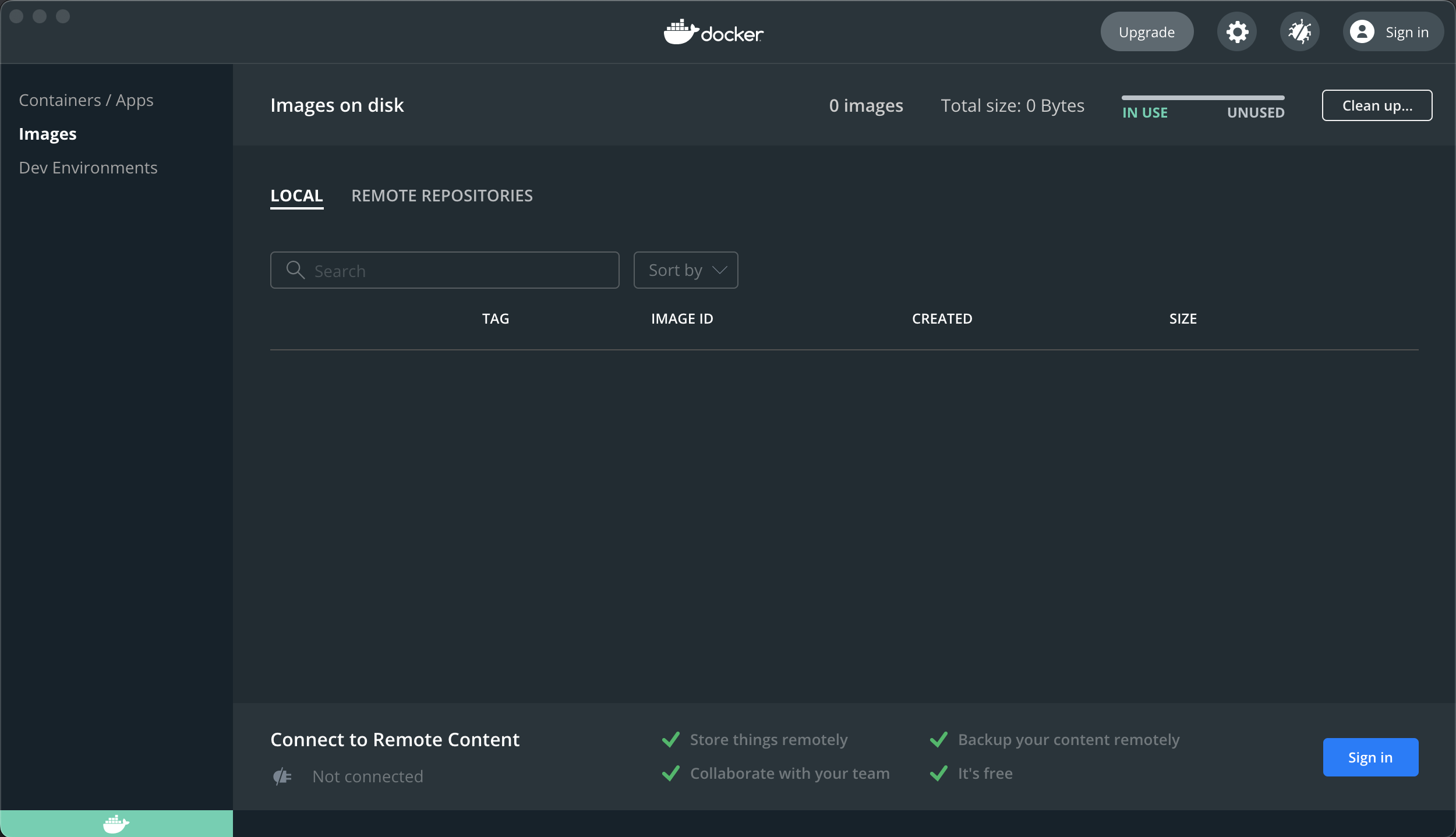
Good, now let's build the Docker image. Call the following command from the terminal:
docker build --pull --rm -f "Dockerfile" -t rava-docker "."
Note: if you're not logged in as the administrator on your system, you might need to write sudo followed by the command above.
Now, this command should take a while. What's happening is that we're creating a Docker image of what RAVA needs in order to run. You can check the Dockerfile if you're interested to see what we're building into the image. Essentially, instead of installing these packages directly onto your computer, we're building a container with these packages so you can remove them once you're done.
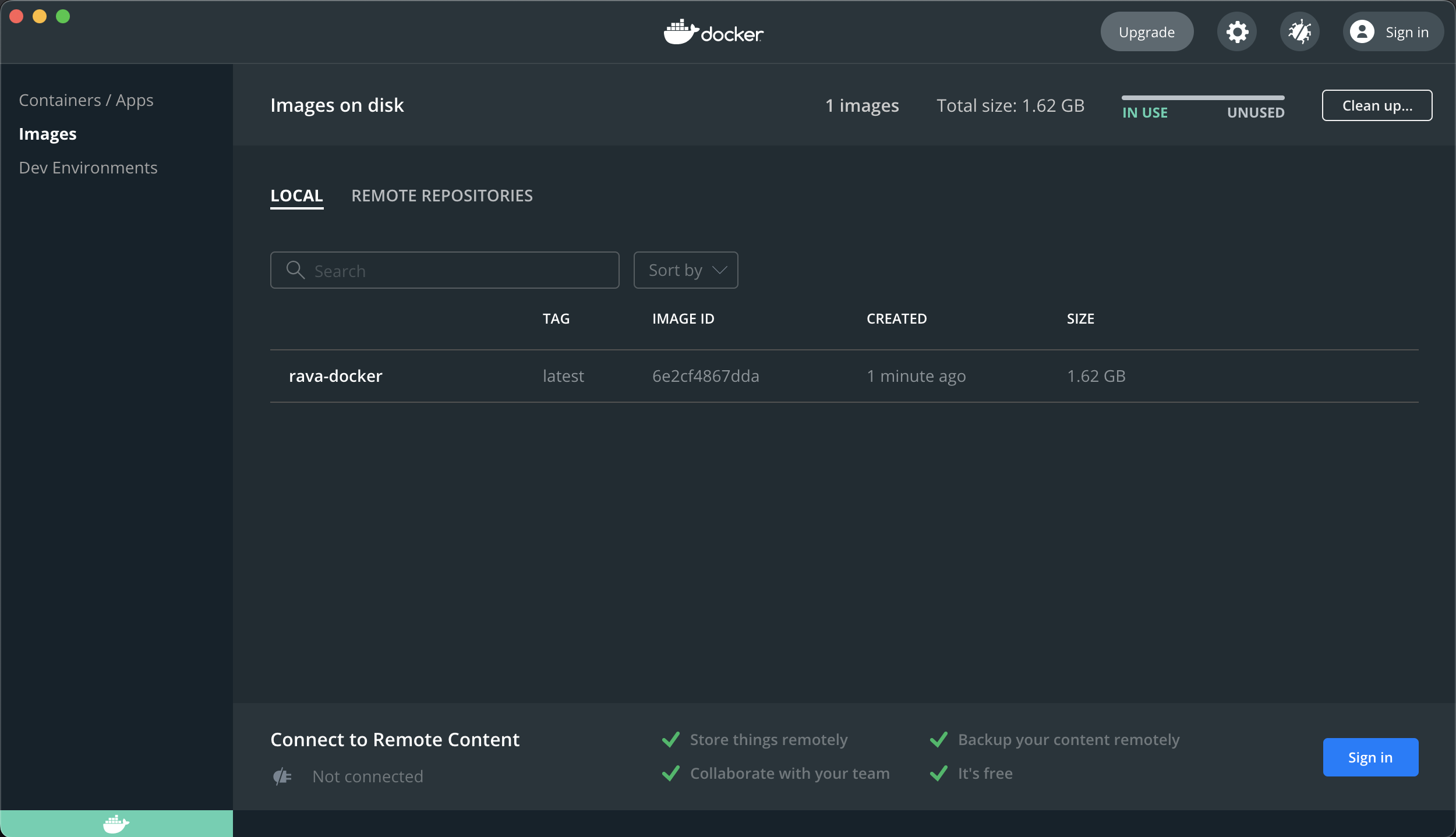
You have now succesfully built your Docker image! 🎉 This only needs to be done once, and once you've succesfully built your image it's only a matter of spinning up a container, which is super easy.
Now, I'll show you how to start a Docker container. Generally it's a good idea to close your container when you're not using RAVA, since it consumes memory having the container running in the background.
First, make sure that you are inside the RevueAVAssistant folder in your terminal. This can be checked using pwd and should return something along the lines of /.../.../RevueAVAssistant. If you are in the right folder in your terminal, then copy the following line into your terminal and press return.
docker run -dit -m 2g --name rava -v "$(pwd)":/RevueAVAssistant rava-docker
This should spin up a container with that you just built. The container is mounted on your local computer, so that the RevueAVAssistant folder in your container is the same as the RevueAVAssistant folder on your computer, but we'll see that later. You can verify that you succesfully started your container by checking the Docker Desktop app.

If you click the CLI (command-line interface) button seen above, you are now opening a terminal inside your running Docker container. Inside this container, the Dockerfile made sure you have a) Python, b) LibreOffice for creating the powerpoints and c) ImageMagick, which is going to create pngs from your powerpoints.
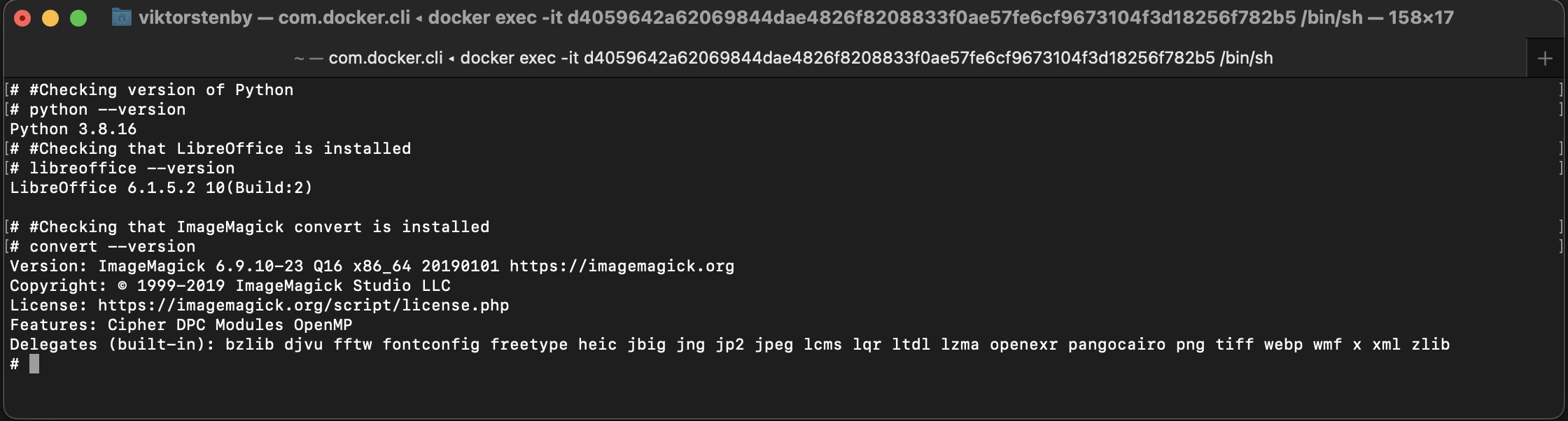
In the terminal you have started inside of your Docker container, navigate to the RevueAVAssistant folder by writing
cd /RevueAVAssistant
and writing tree should allow you to see all of the files! Congratulations - you now know how to build a Docker image and how to open an interactive session inside of your container. Docker is a nifty tool for making code run on different machines, so I hope you've learned a thing or two!
While setting this up might have taken you a bit of time, believe me, it's much easier than having to install all of these packages on your own machine and getting it to run there!
Since the container is running in the background, remember to close it once you're done with it and need your RAM for something else (QLab, for instance!)

Also remember that built Docker images take up space on your computer, so clean up through Docker Desktop every once in a while!
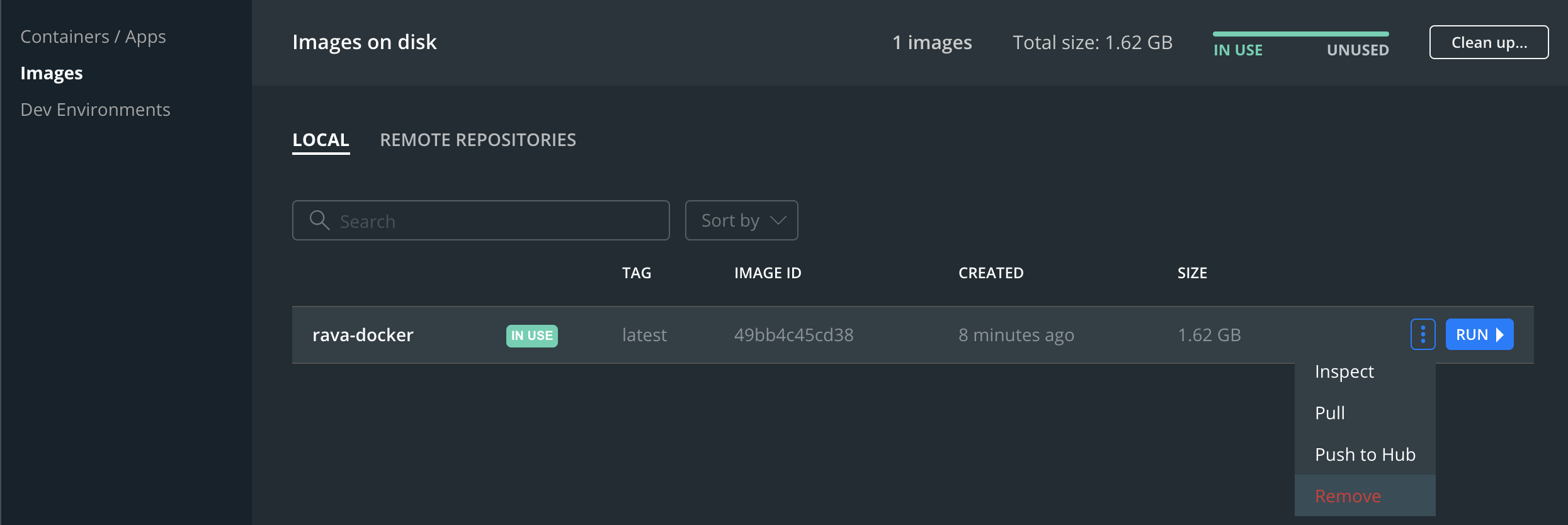
Having done all of the above, you're ready for the tutorial! This will show you the basic ins and outs of RAVA.
You, of course having read the entire guide thus far, are now an expert in Docker and know how to spin up a Docker container and navigate the terminal. In your interactive terminal inside of the Docker container, navigate to the /RevueAVAssistant folder from before.
Paste the following lyrics
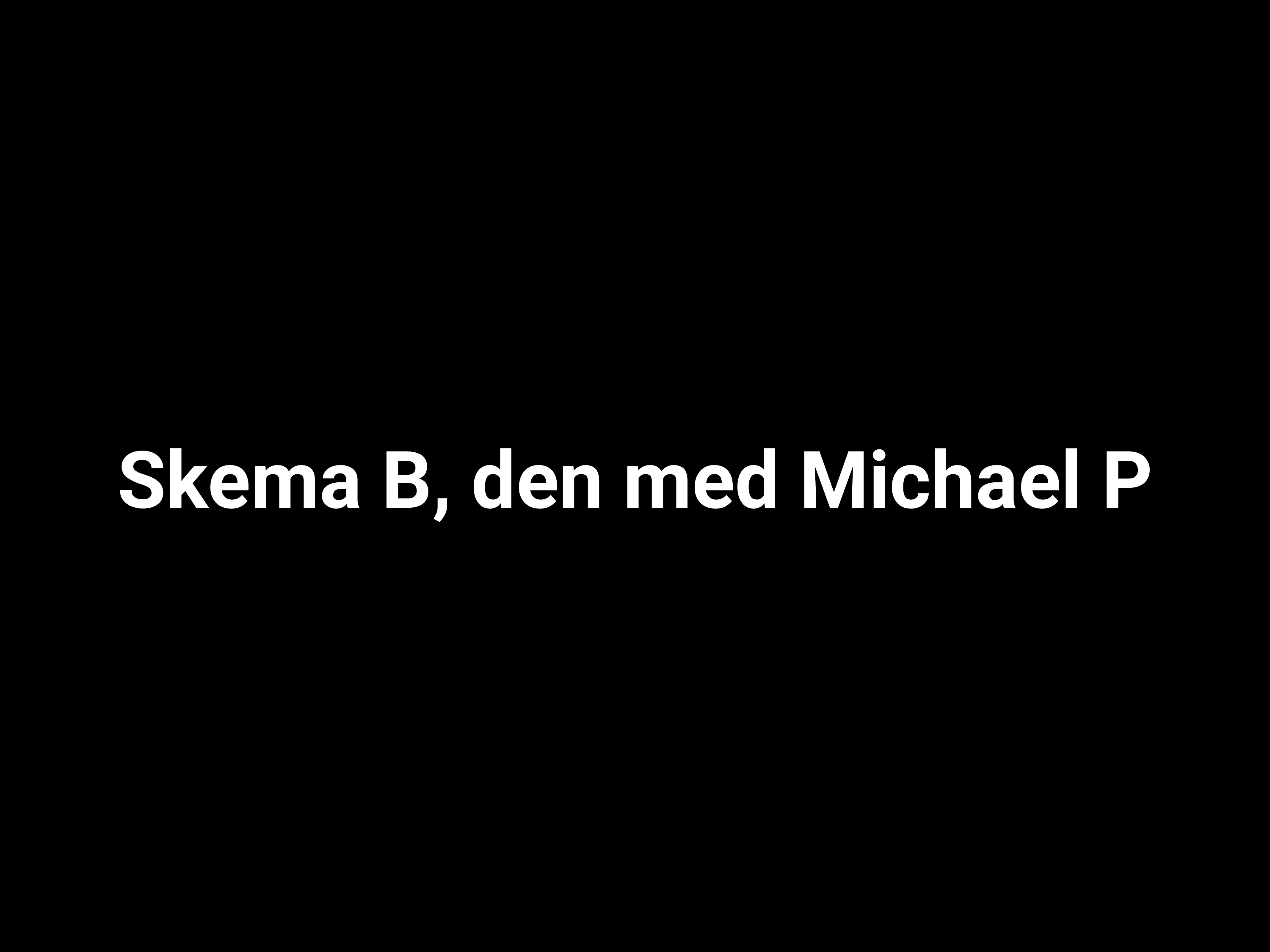
Skema B, den med Michael P
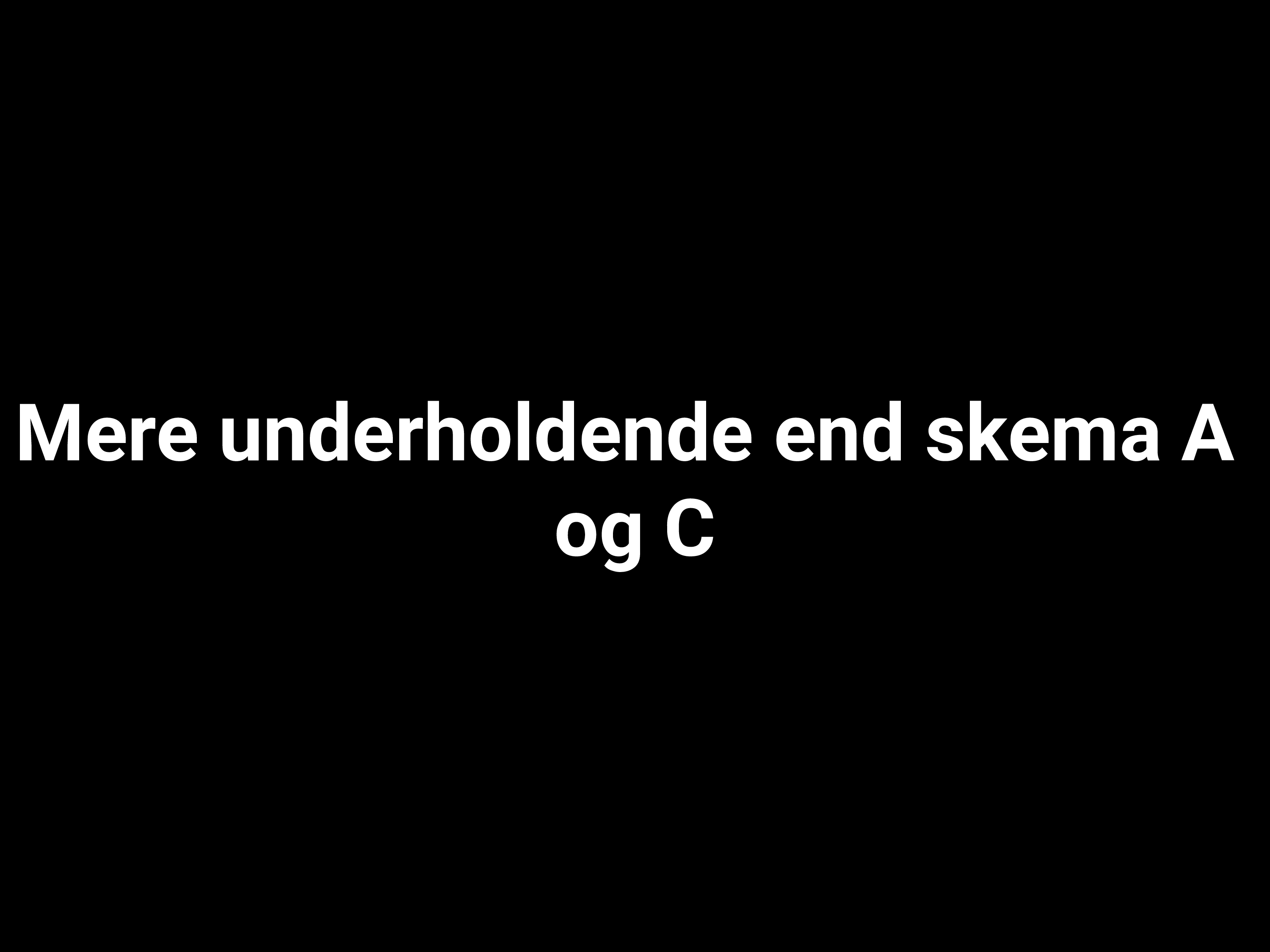
Mere underholdende end skema A og C
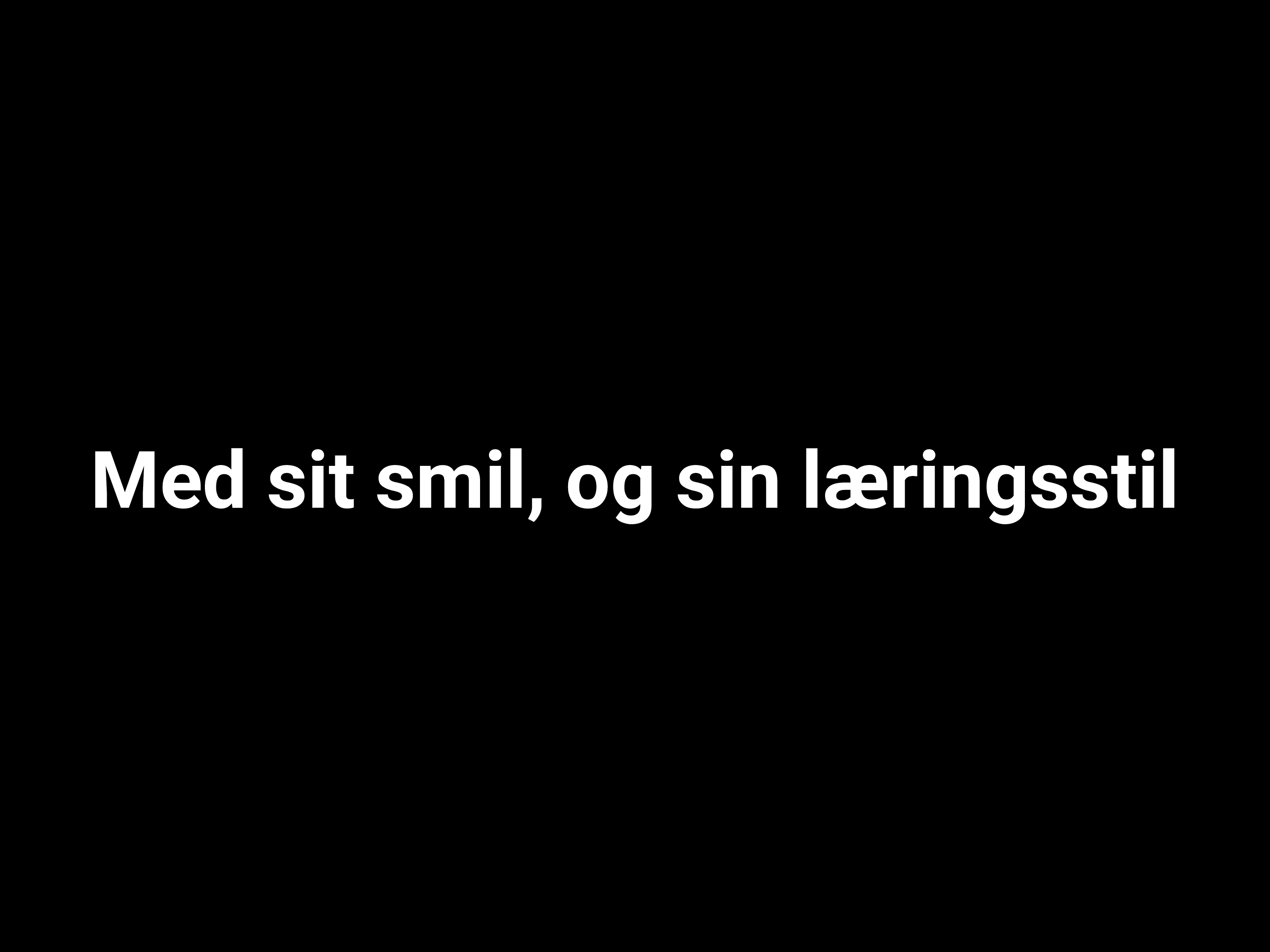
Med sit smil, og sin læringsstil
Lærer Michael dig at bruge Eulers tal og pi
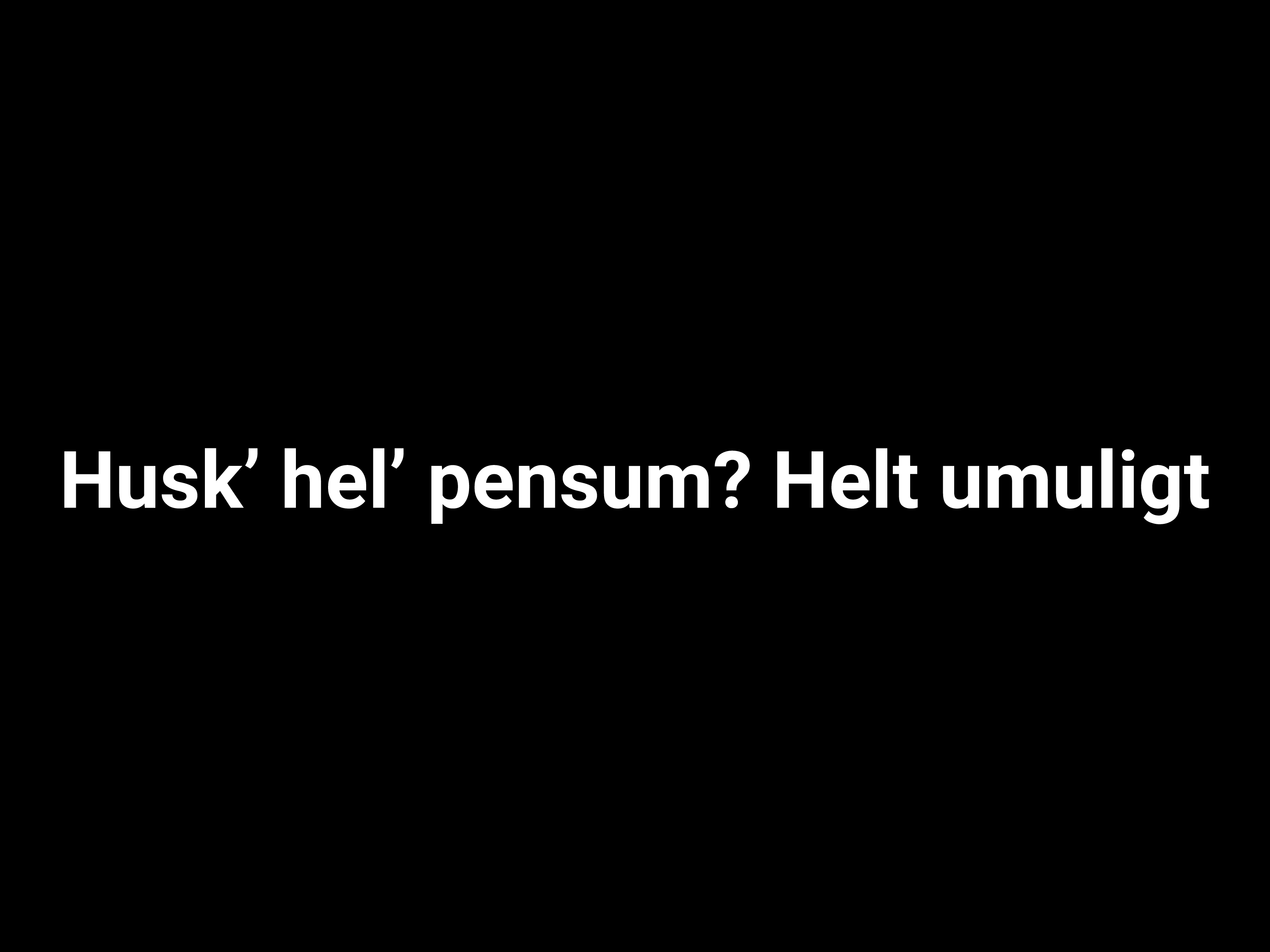
Husk’ hel’ pensum? Helt umuligt
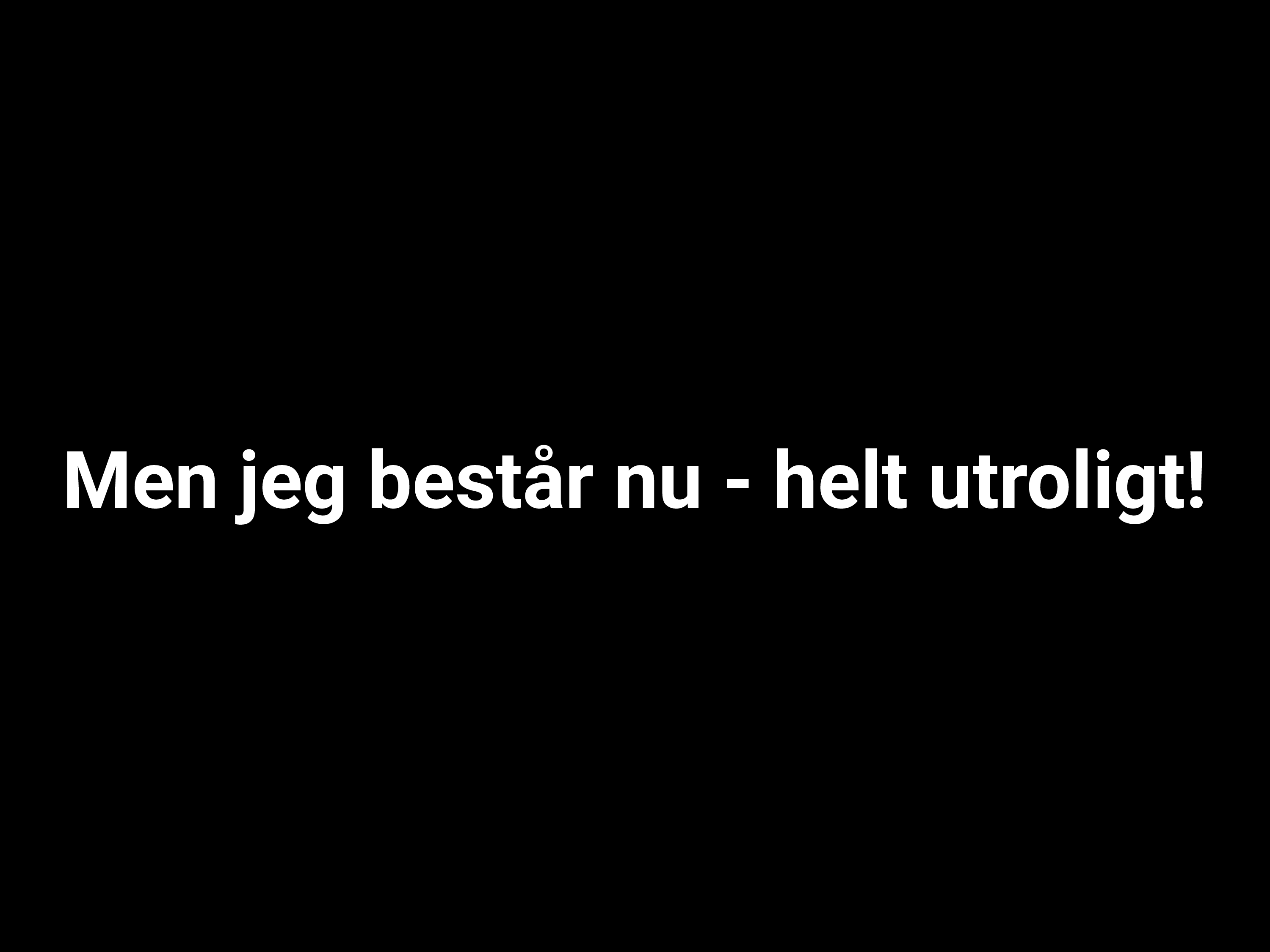
Men jeg består nu - helt utroligt!
into a file called skema_b.txt inside of the /RevueAVAssistant/project_template/lyrics/00_raw/ folder on your local machine. Similarly, place the lyrics below into dataanalyse.txt located in the same folder.
Du’ et fedt datasæt
Min analyse bliver let
Ingen manglende værdier
Alt kontinuert
Nu skal jeg til at ta’ et valg
Om middel eller typetal
Hørte de sku’ vær’ de bedste
Men det er forkert

Medianer
Gennemsnittets bror
Smarter’ end man tror
Medianer
Dem beregner jeg
You can verify that the folder is mounted and therefore can be read from inside your container by writing tree. Now to the fun part! Write
python rava.py --project revue_template
and let RAVA do its job. Once done, you should see that your container with RAVA has populated the folder on your local machine!
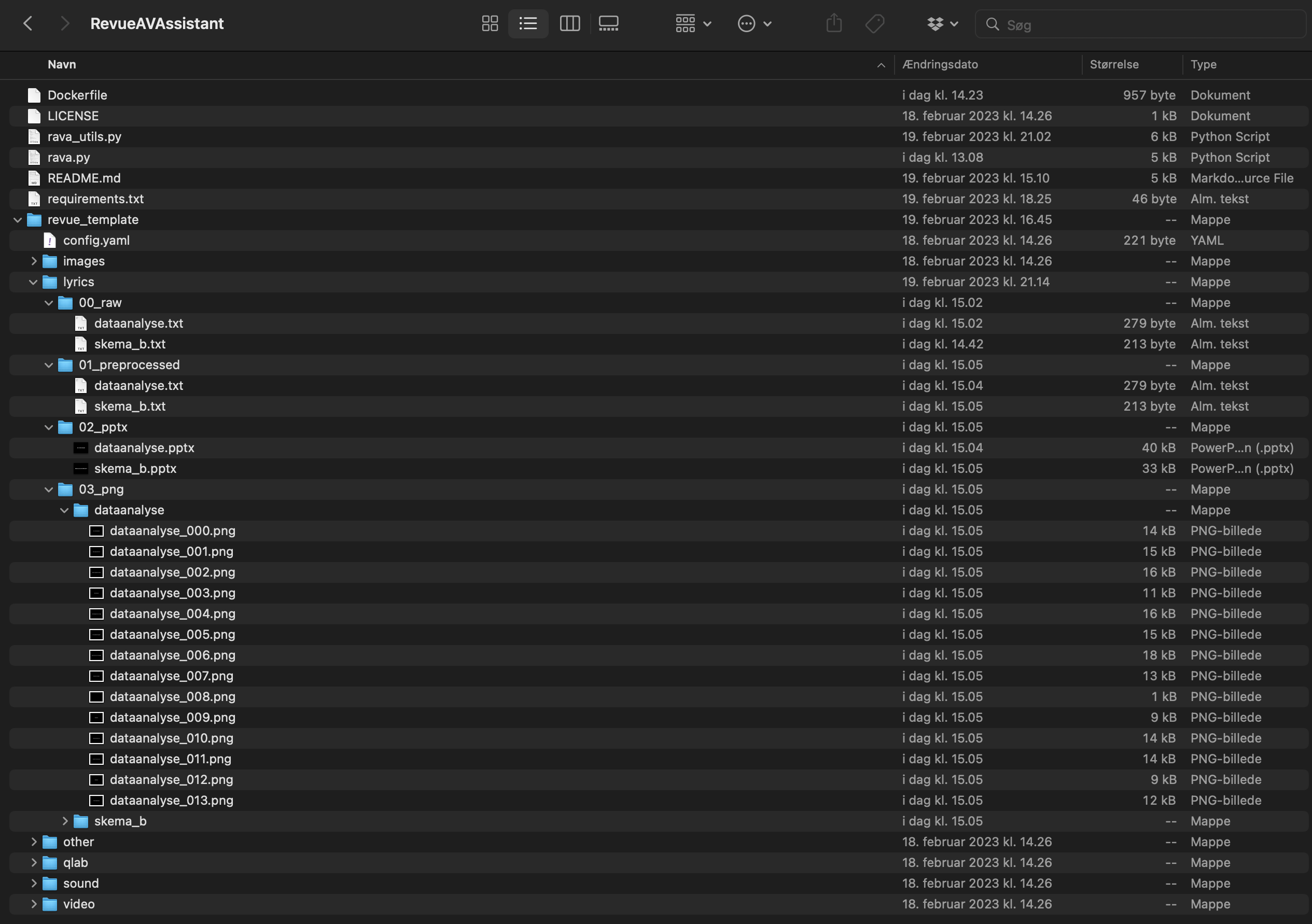
Having created your first pngs, let's understand a bit of how RAVA works under the hood.
-
The
00_rawfolder is used to store your raw lyrics. You can put.texfiles here, but you can also play it safe and put.txtfiles here.-
If you place
.texfiles here, thenpreprocess_texfromrava_utils.pywill try and clean up your messy.texfile, extract the lyrics and dump it into01_preprocessed. Experience tells me that because people always put a lot of garbage into the.texfiles, then most often or not, I have not accounted for some stupid edge case and the function fails somehow. -
If you place
.txtfiles here, nothing will happen and it will be copied to the01_preprocessedfolder. This is pretty easy.
-
-
The
01_preprocessedfolder is for preprocessed lyrics. We will edit this in a bit. -
The
02_pptxfolder is for the powerpoints. -
The
03_pngfolder contains a subfolder for each song, heredataanalyseandskema_b.- The
dataanalysefolder has 14 pngs in total, one for each line in01_preprocessed/dataanalyse.txt. - The
skema_bfolder has 6 pngs in total, one for each line in01_preprocessed/skema_b.txt.
- The
Fixing errors is a big part of the work. Lyrics don't match up with what singers are singing, and sometimes the lines breaks aren't where we want them to be. Let's have a look at the 6 pngs that RAVA produced.
000.png |
001.png |
002.png |
003.png |
004.png |
005.png |
|---|---|---|---|---|---|
 |
 |
 |
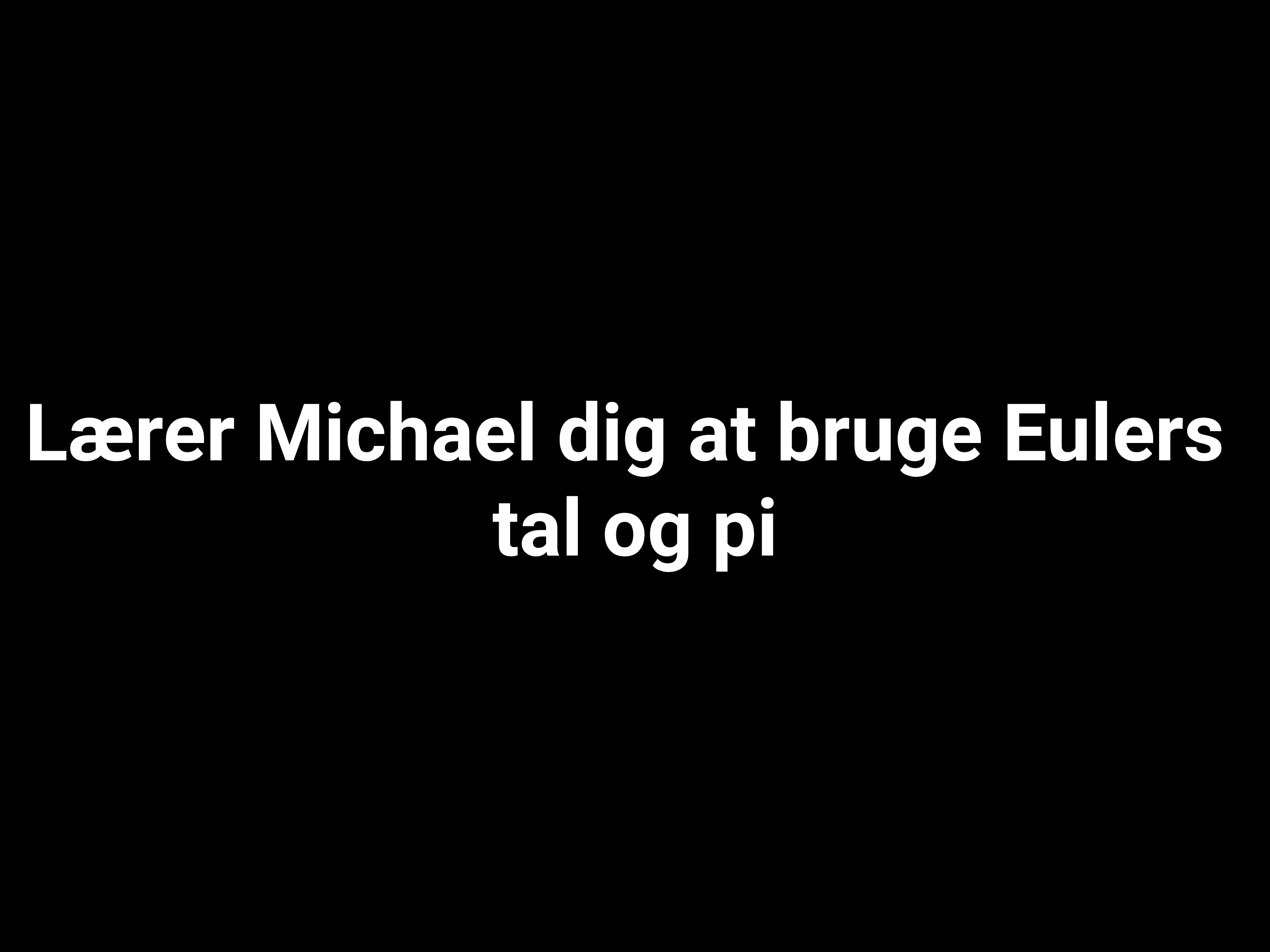 |
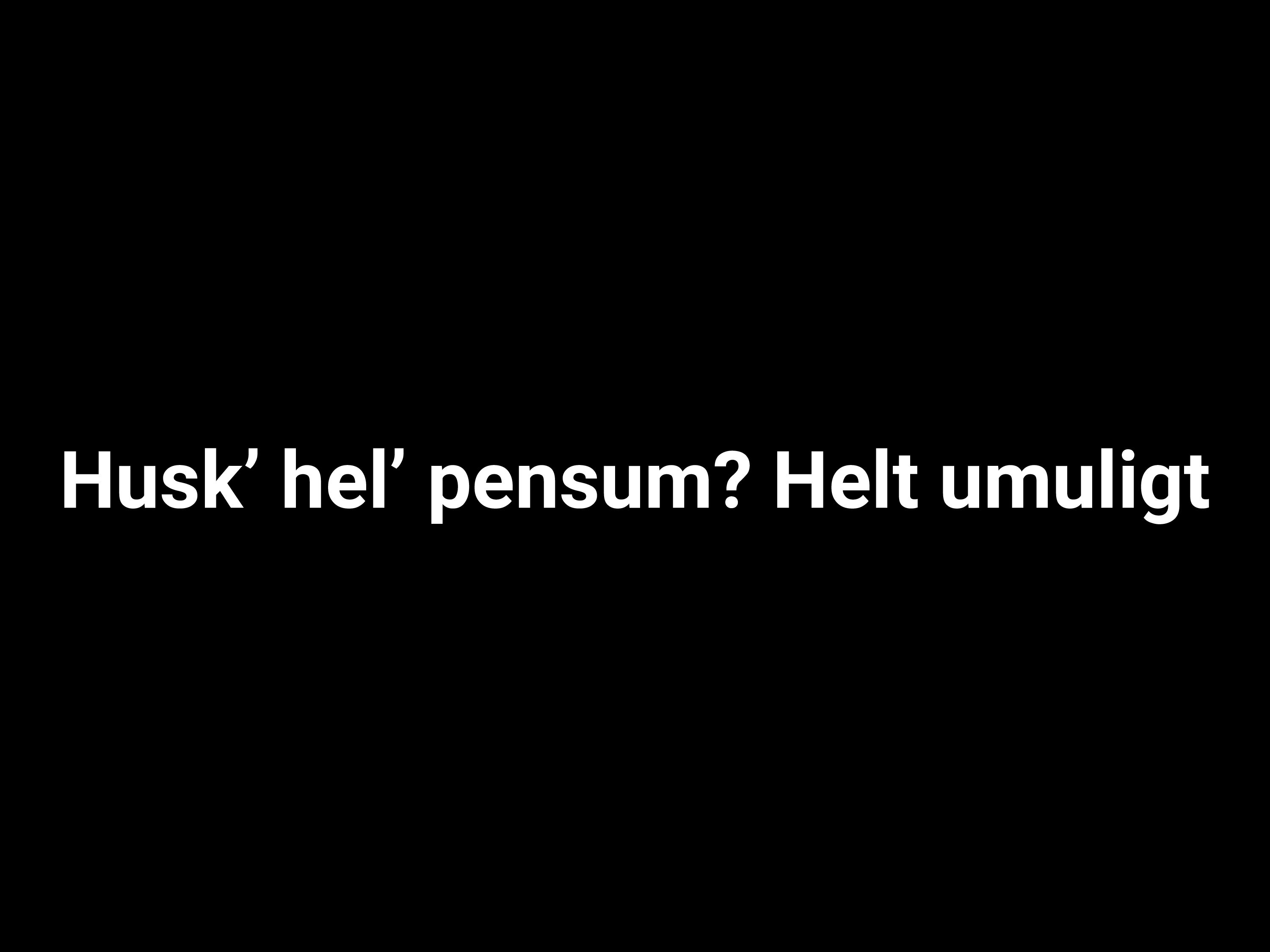 |
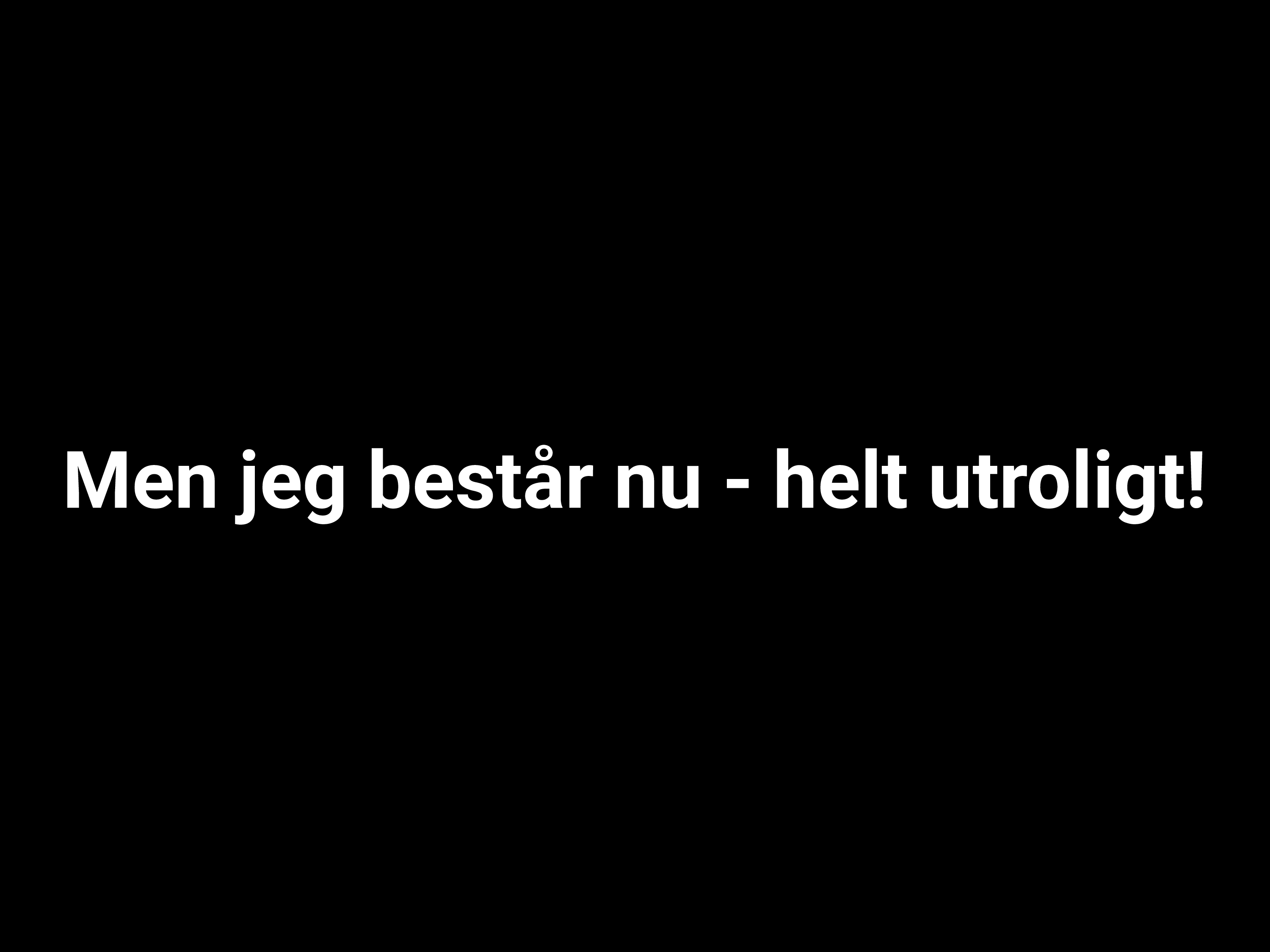 |
I have found a few changes that I want to make - for instance, I would like specify some of the line breaks and I would like to split some of the lyrics up across multiple slides. I do this by modifying 01_preprocessed/skema_b.txt and change it to the following:
Skema B!
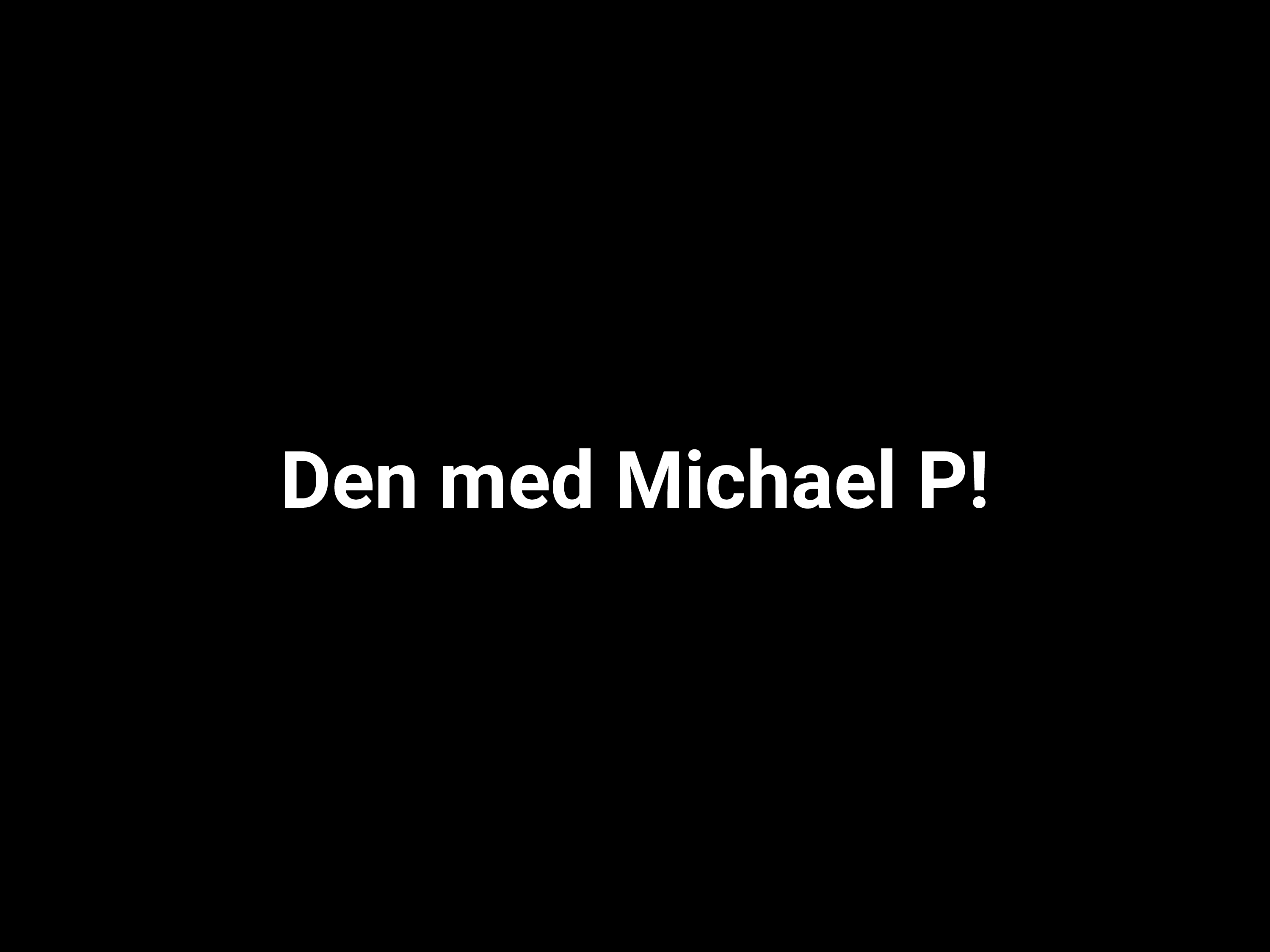
Den med Michael P!
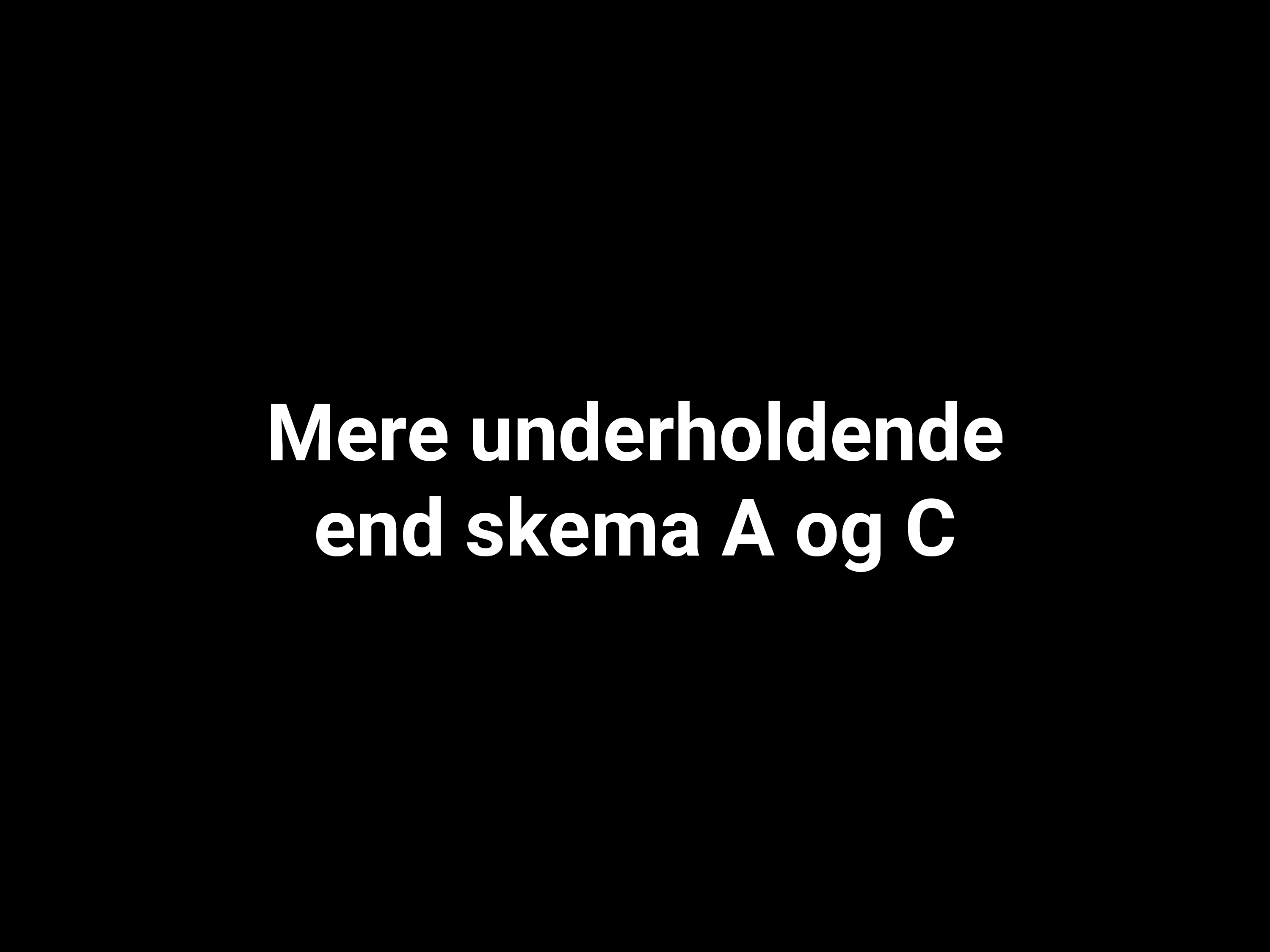
Mere underholdende \n end skema A og C
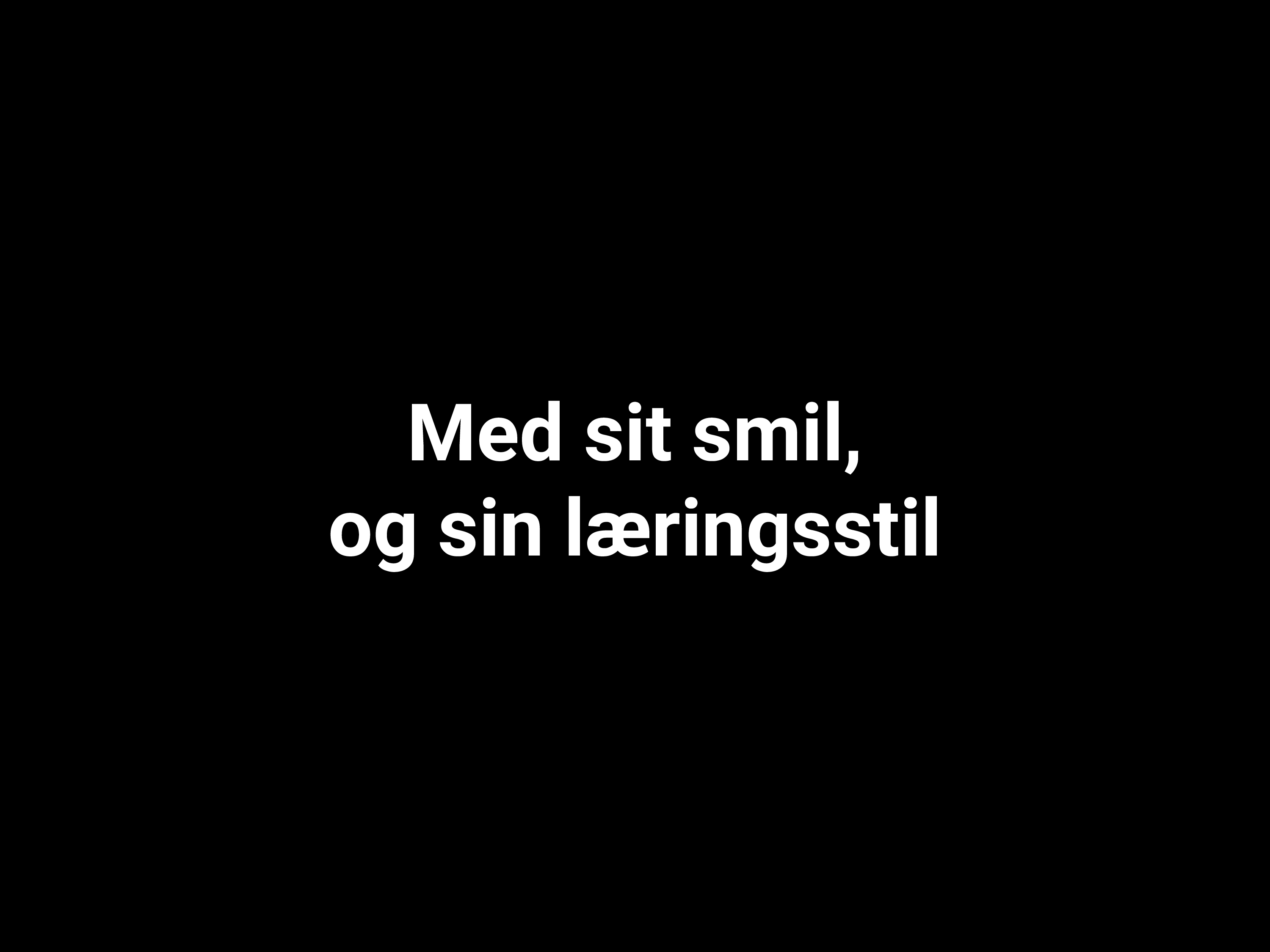
Med sit smil, \n og sin læringsstil
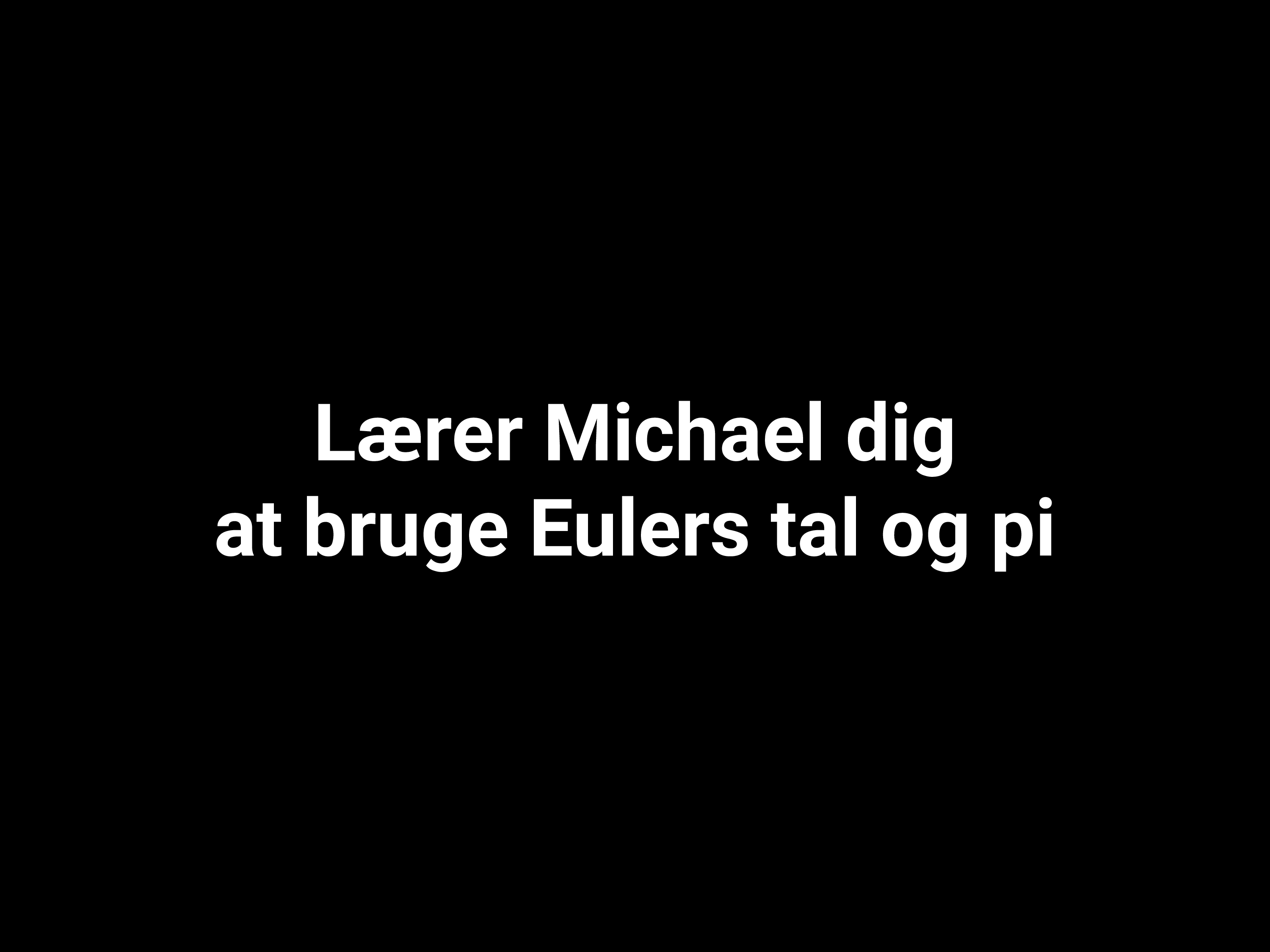
Lærer Michael dig \n at bruge Eulers tal og pi
Husk’ hel’ pensum? Helt umuligt
Men jeg består nu - helt utroligt!
I save the song and rerun RAVA from my Docker container by calling python rava.py --project revue_template.
# python rava.py --project revue_template
RevueAVAssistant: 2023-02-25 14:27:13,104 - INFO - dataanalyse: processing...
RevueAVAssistant: 2023-02-25 14:27:13,107 - INFO - dataanalyse: 00 -> 01 skipped, preprocessed song already exists.
RevueAVAssistant: 2023-02-25 14:27:13,112 - INFO - dataanalyse: 01 -> 02 skipped, pptx is up to date.
RevueAVAssistant: 2023-02-25 14:27:13,118 - INFO - dataanalyse: 02 -> 03 skipped. png is already up to date.

RevueAVAssistant: 2023-02-25 14:27:13,118 - INFO - skema_b: processing...
RevueAVAssistant: 2023-02-25 14:27:13,123 - INFO - skema_b: 00 -> 01 skipped, preprocessed song already exists.
RevueAVAssistant: 2023-02-25 14:27:13,385 - INFO - skema_b: 01 -> 02 done.
RevueAVAssistant: 2023-02-25 14:27:13,394 - INFO - skema_b: 02 -> 03 creating pngs, please wait...
RevueAVAssistant: 2023-02-25 14:27:24,618 - INFO - skema_b: 02 -> 03 complete, 7 pngs written to ./revue_template/lyrics/03_png/skema_b/.
Let's have a look at the pngs again!
000.png |
001.png |
002.png |
003.png |
004.png |
005.png |
006.png |
|---|---|---|---|---|---|---|
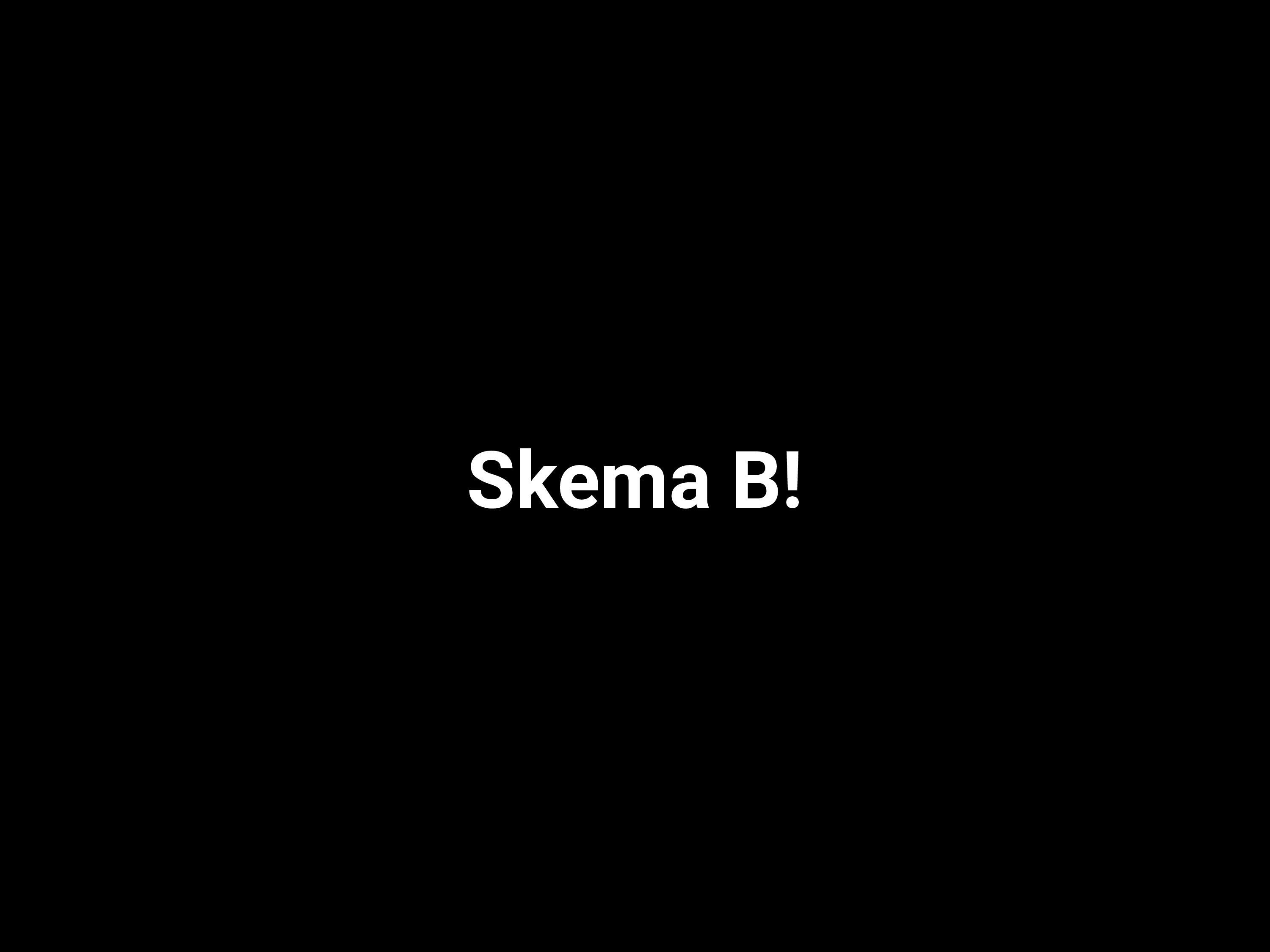 |
 |
 |
 |
 |
 |
 |
Great! From this, you've learned the essentials of going from the .txt file in the 01_preprocessed folder to the pngs.
- Each line corresponds to a png.
- Blank lines will give you a black screen (check
01_preprocessed/dataanalyse.txtanddataanalyse_008.png!)
- Blank lines will give you a black screen (check
- Add
\nif you want to control where the line breaks. - When rerunning RAVA, it will check whether or not
01_preprocessedis newer than03_pngfor that specific song. If so, it will remake the.pptxfile and then thepngfiles.
Now let's create your own project. Delete the files in 00_raw, 01_preprocessed, 02_pptx and delete the subfolders skema_b and dataanalyse in the 03_png folder. Copy the revue_template and rename it something new, e.g. Revue2022.
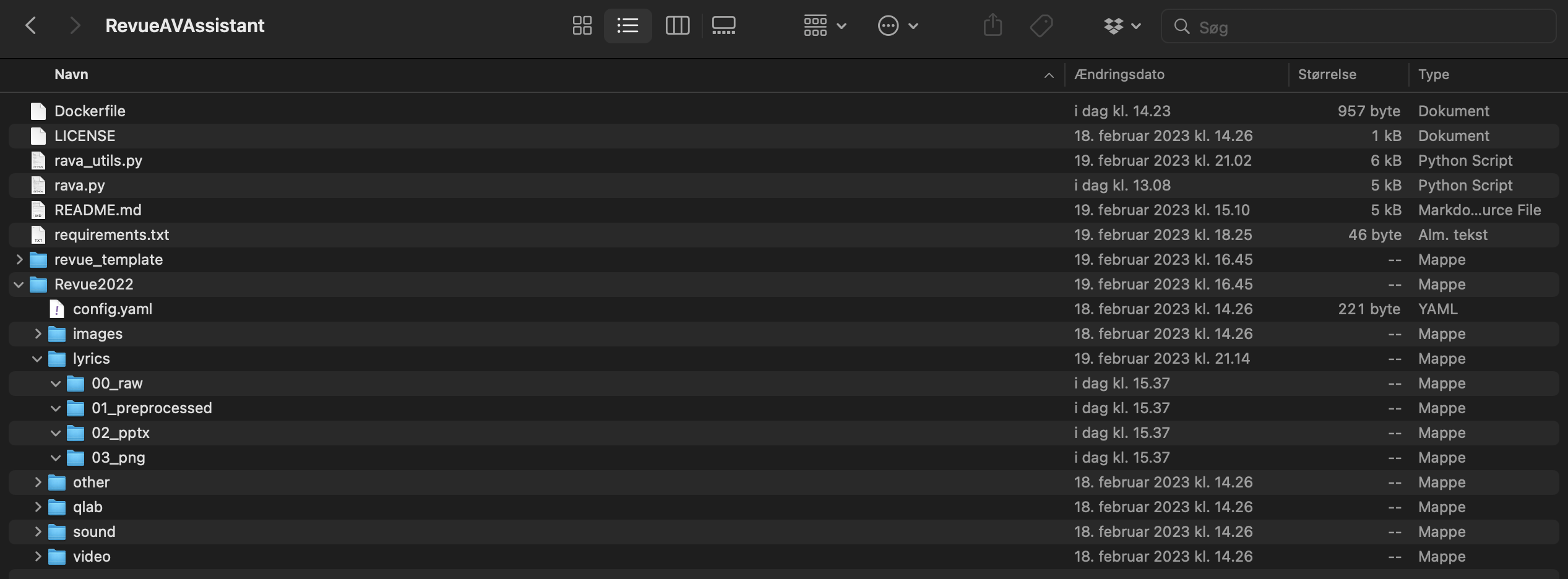
Take all of your tex songs (or txt) and dump them in your newly created folder. Calling tree from the container terminal allows you see your files before you use RAVA.
# tree
.
├── Dockerfile
├── LICENSE
├── README.md
├── Revue2022
│   ├── config.yaml
│   ├── images
│   ├── lyrics
│   │   ├── 00_raw
│   │   │   ├── Acapella.tex
│   │   │   ├── Afslutningsnummer.tex
│   │   │   ├── Åbningsnummer.tex
│   │   │   ├── Dataanalyse.tex
│   │   │   ├── Endnu_en.tex
│   │   │   ├── Frihed.tex
│   │   │   ├── Første_spacer_paa_maanen.tex
│   │   │   ├── General_engineering.tex
│   │   │   ├── Hotel_Kampsax.tex
│   │   │   ├── ICE_Kongen.tex
│   │   │   ├── Imponerer_mig_ik.tex
│   │   │   ├── Karls_sang.tex
│   │   │   ├── Manden_i_anden_kvadrant.tex
│   │   │   ├── Olkroket.tex
│   │   │   ├── Skema_B.tex
│   │   │   └── Ups_jeg_dumpede_igen.tex
│   │   ├── 01_preprocessed
│   │   ├── 02_pptx
│   │   └── 03_png
│   ├── other
│   ├── qlab
│   ├── sound
│   └── video
├── rava.py
├── rava_utils.py
├── requirements.txt
└── revue_template
    ├── config.yaml
    ├── images
    ├── lyrics
    │   ├── 00_raw
    │   ├── 01_preprocessed
    │   ├── 02_pptx
    │   └── 03_png
    ├── other
    ├── qlab
    ├── sound
    └── video
and then again, we call rava.py, only this time, change the --project argument to the folder in which you have your songs. For me, that would be:
python rava.py --project Revue2022
and grab a cup of tea or go for a walk. The pdf to png step takes a while, so have patience! You can follow along in the log to see how it's going, and if the 01_preprocessed file is empty, it means that something went wrong in the tex -> txt step. And then you'll have to fix the errors, rerun the script, ...
This concludes the documentation of RAVA! QLab is an entirely different beast which takes quite a lot of time to set up and learn, so having familiarized yourself with RAVA before starting out with QLab is definitely a good thing.
If you have any suggestions or improvements for RAVA, again, feel free to contact me. Also make sure to give this repository a star if you enjoyed it!